
How do I change one thing on my page, like a photo or a paragraph?
Every page is a stack of sections, and each one changes on its own. Open the page, find the section, change it — then publish.
Updated 15 September 2026
Open the page, not the site
Websites, then Manage, then the Pages list near the bottom. Press the page you want; it opens in a second browser tab. Pick by name — if your menu calls it something else, the list tells you.
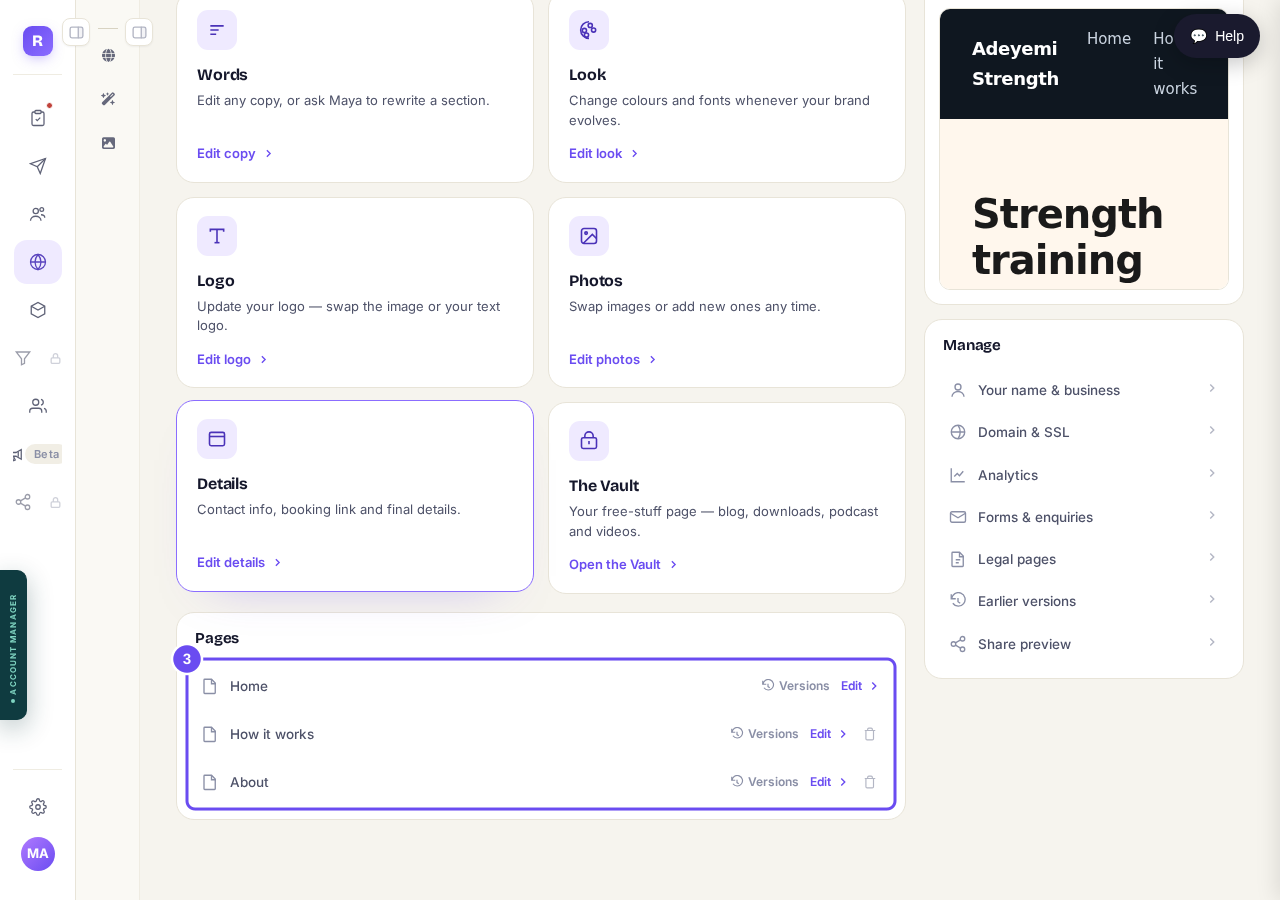
Every page you have. Press the one you want to change.
Take me thereFind your section in the list
Down the side, each section shows its opening words, so you can recognise it without hunting. Header at the top, your sections numbered in the middle, Footer at the bottom.
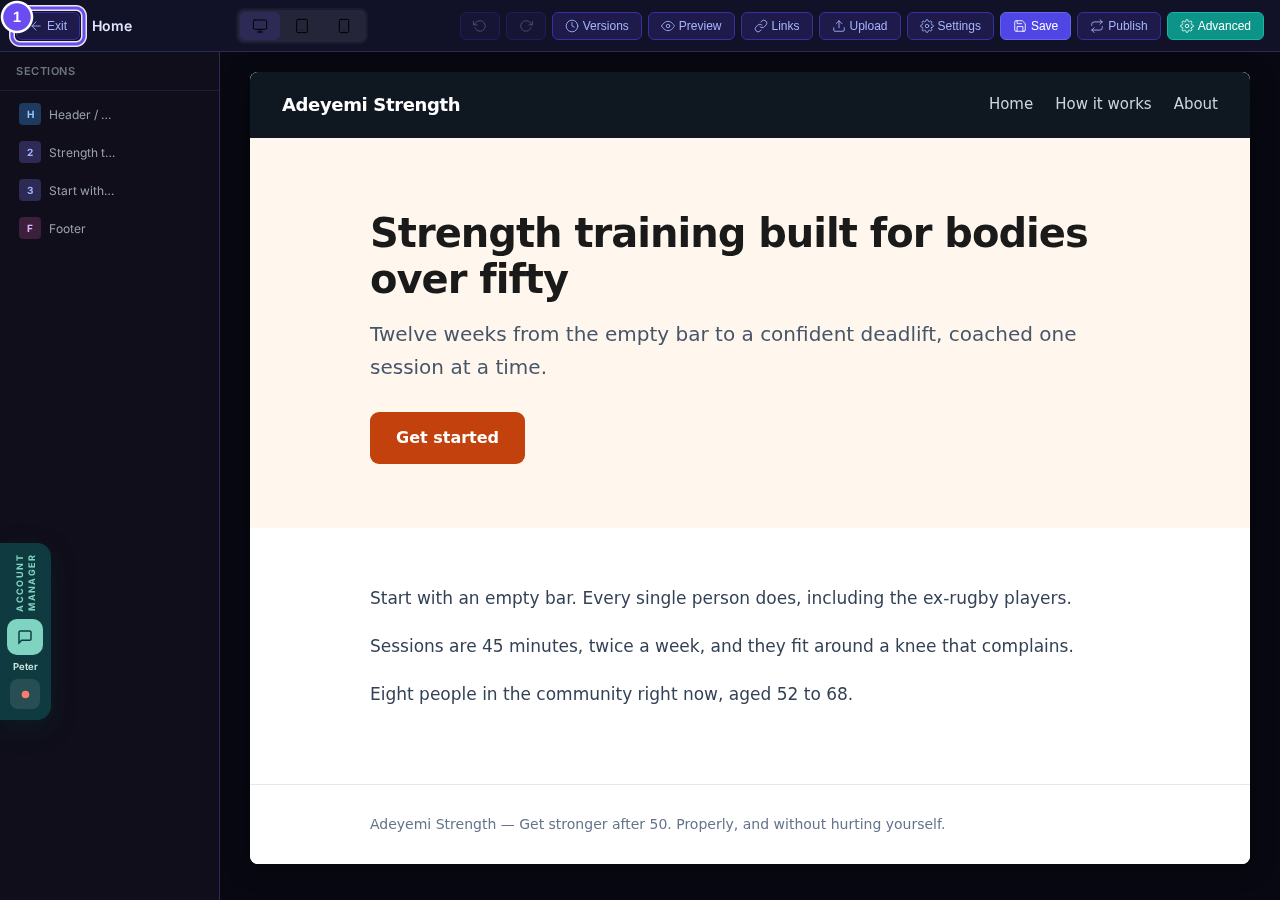
The sections of your page, in the order a visitor sees them.
Move, hide or copy a section
Each section has arrows to move it, an eye to hide it from visitors, and a copy. Along the top: Preview, Save, and Publish — only Publish changes what the public sees.
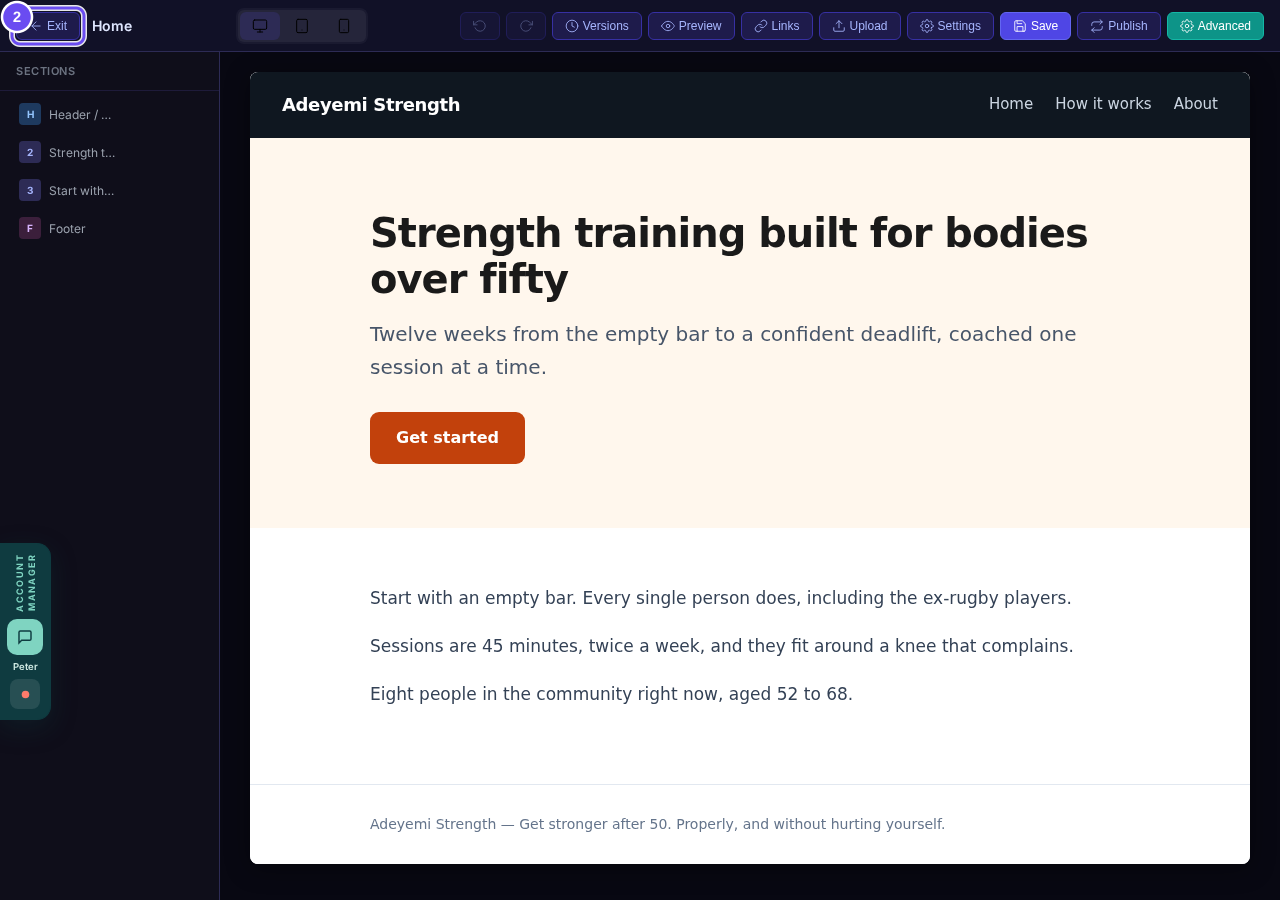
Move it, hide it, copy it. Then Publish, which is the one that counts.
Is my website separate pages or one long page, and can I add more?
Related articles
How do I add a new page to my website?
You add a page from your website's Manage board. It starts as a draft in your site's design and goes live when you republish. About five minutes.
How do I add a privacy policy and terms to my website?
Every website has a Privacy Policy and Terms & Conditions, linked from the footer. We write them for you, or you upload your own. About two minutes.
How do I build my website?
Pick a design in the Gallery, bring in what you already have, answer a few of Maya's questions, then work through six short steps and press Publish my website. Everything is saved as you go, so you can stop and come back.