
How do I set up a weekly live call for my group?
In a space, open Live, press Add an event and choose A live call here. Set the day and time, choose Every week and how many weeks, and press Schedule it. About two minutes.
Updated 19 October 2026
Open your space and press Live
Open Community, then Spaces, and press the space. Live is along the top of it.
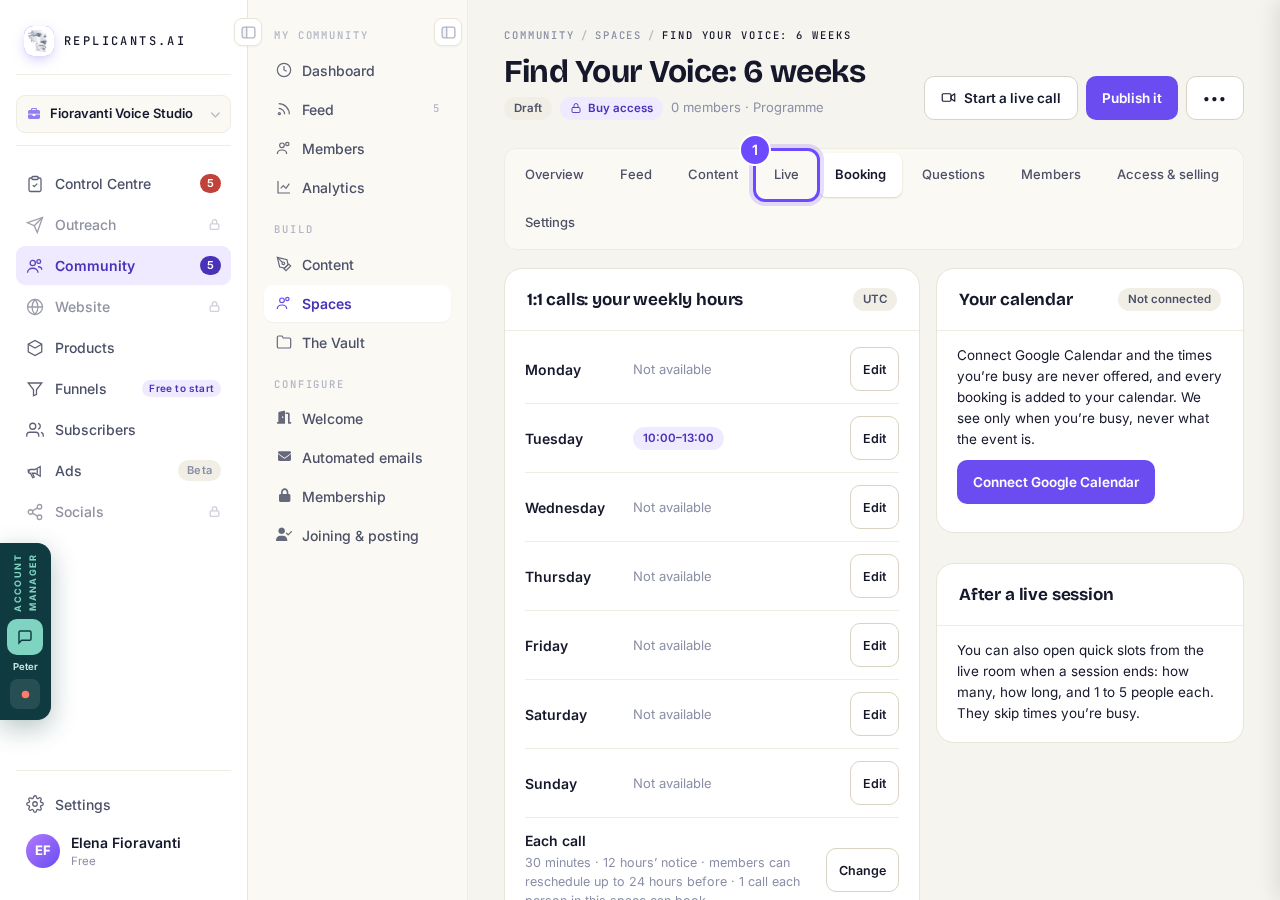
Live, at the top of the space.
Press Add an event
It sits under Next live session, beside Go live now.
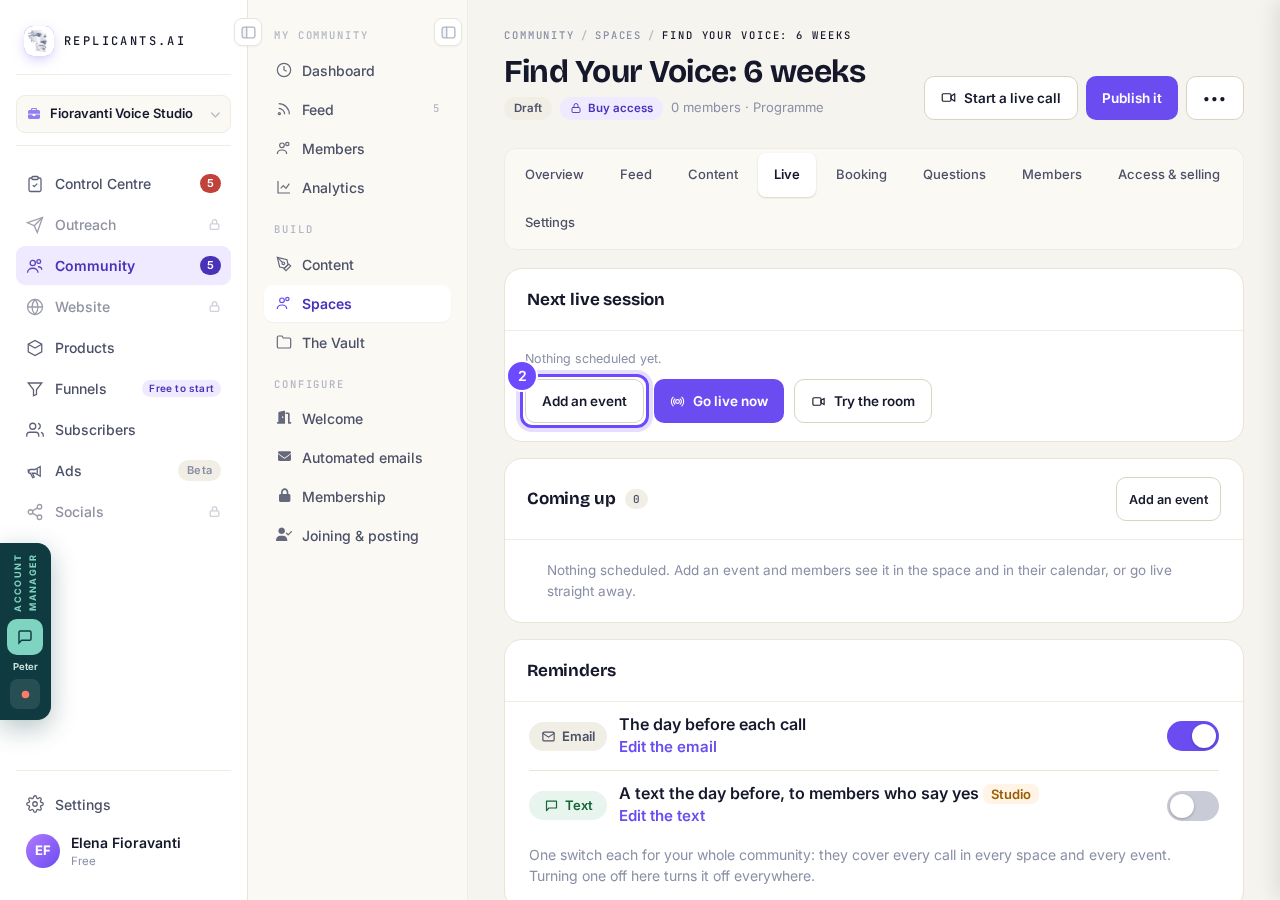
Add an event, under Next live session.
Choose A live call here, then press Next
It runs in this space’s own room, with cameras, chat, raised hands and breakout rooms, and the replay is posted to the space. Meet in person is for a place and a time.
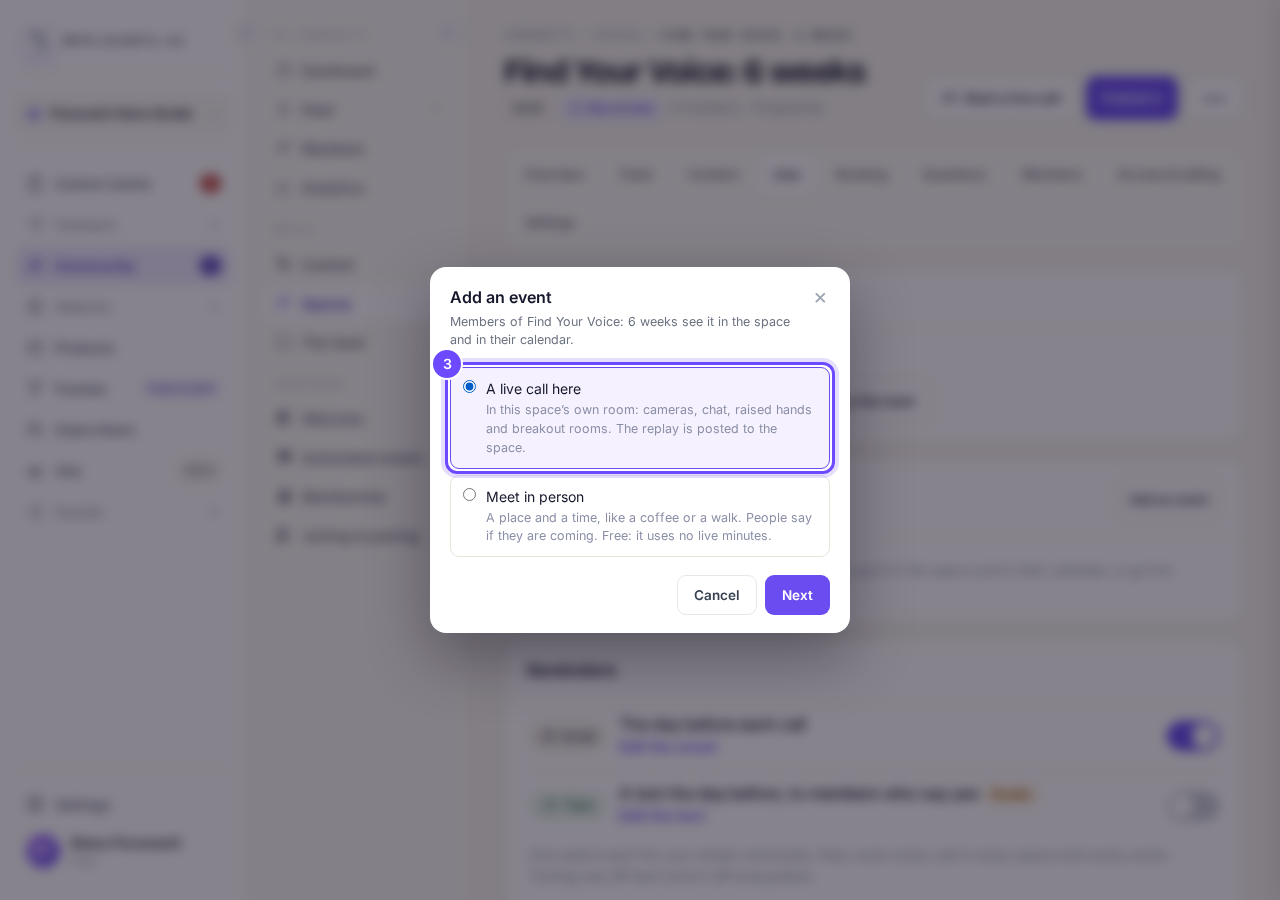
A live call here.
Name it and pick the day and time
Fill in What is it called, Day, Starts at and How long. The times are on your own clock.
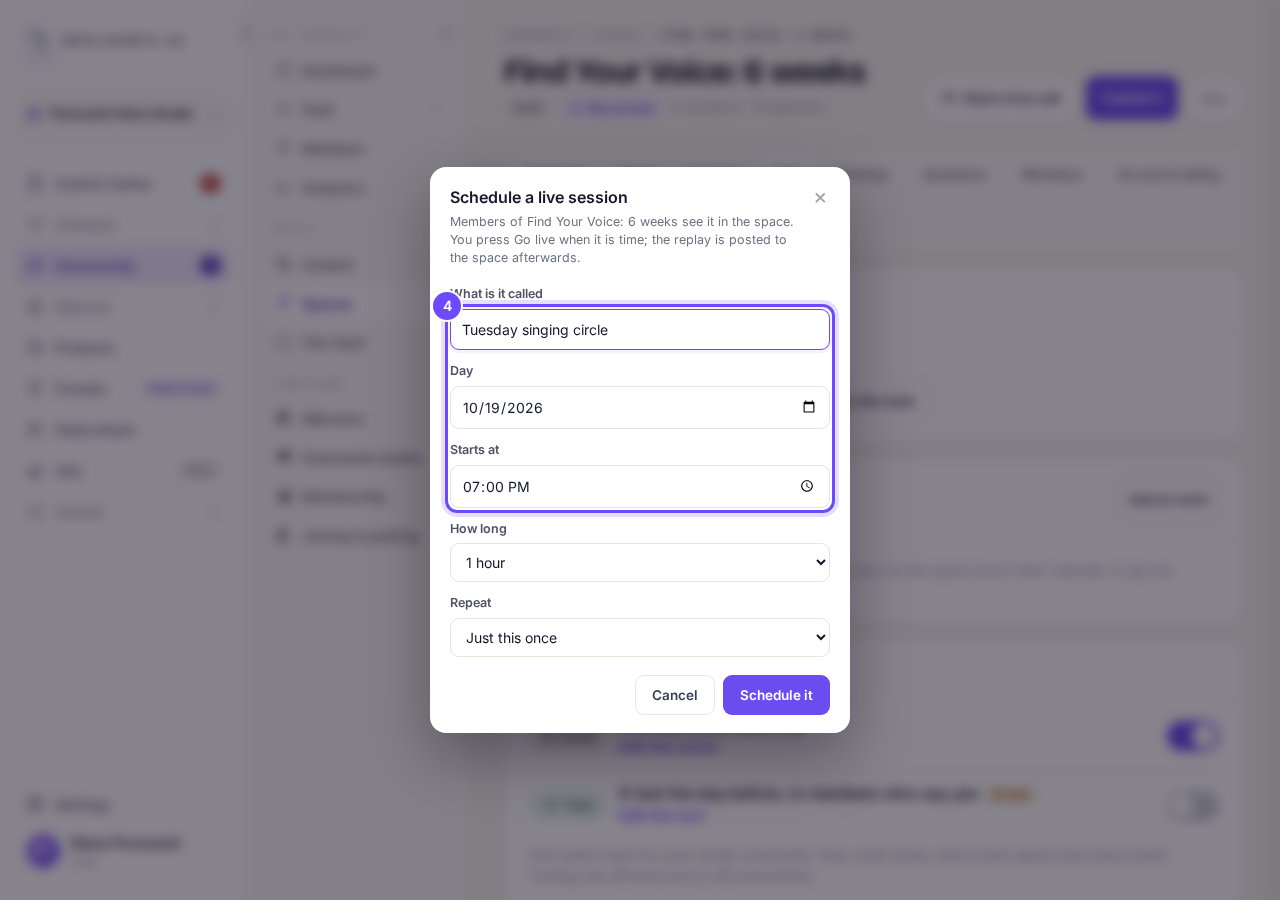
The name and the time.
Set Repeat to Every week, and How many weeks
It is one session each week, at the same time on your clock, for up to 26 weeks.
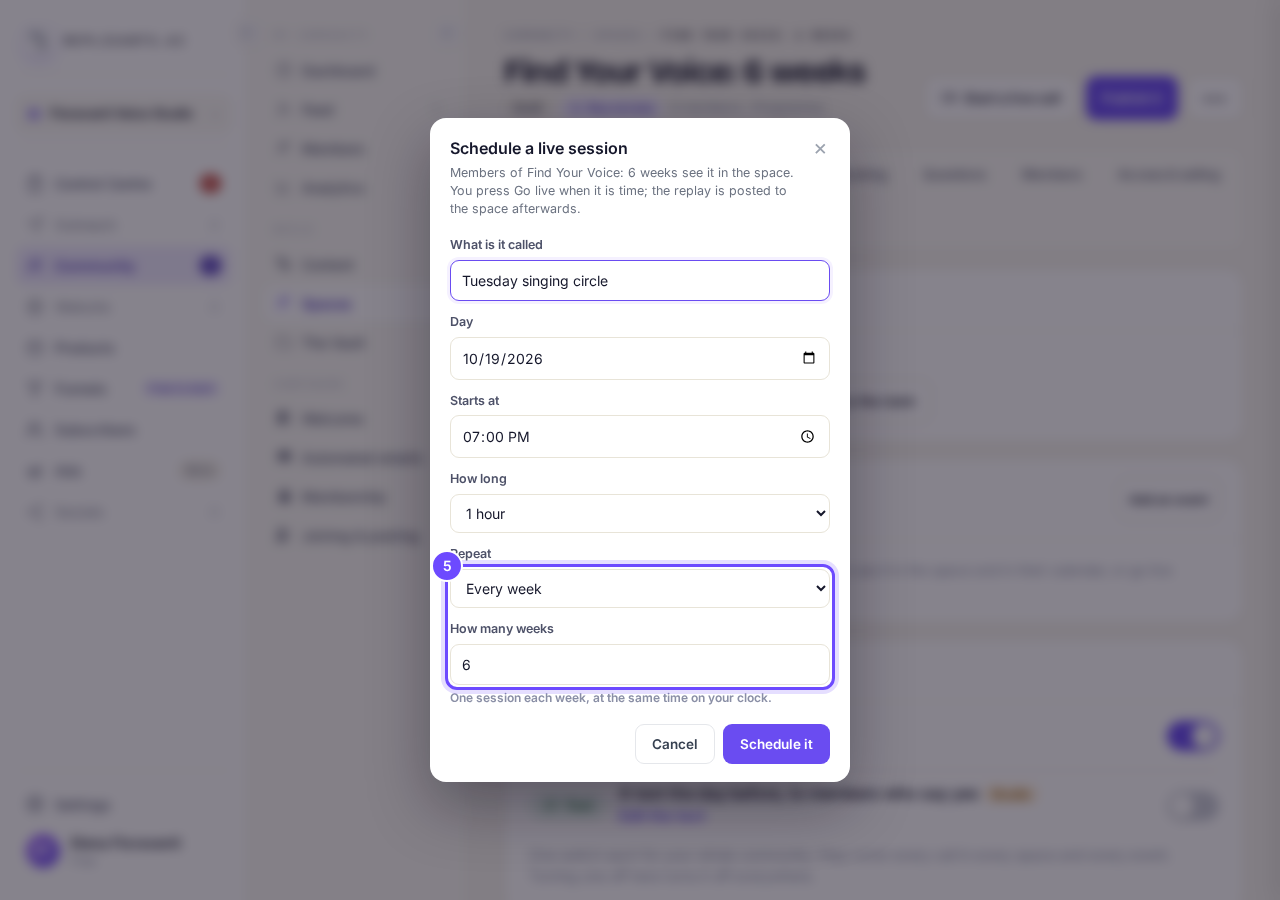
Repeat, and How many weeks.
Press Schedule it
It says, for example, 6 weekly sessions scheduled. When it is time, press Go live on Live.
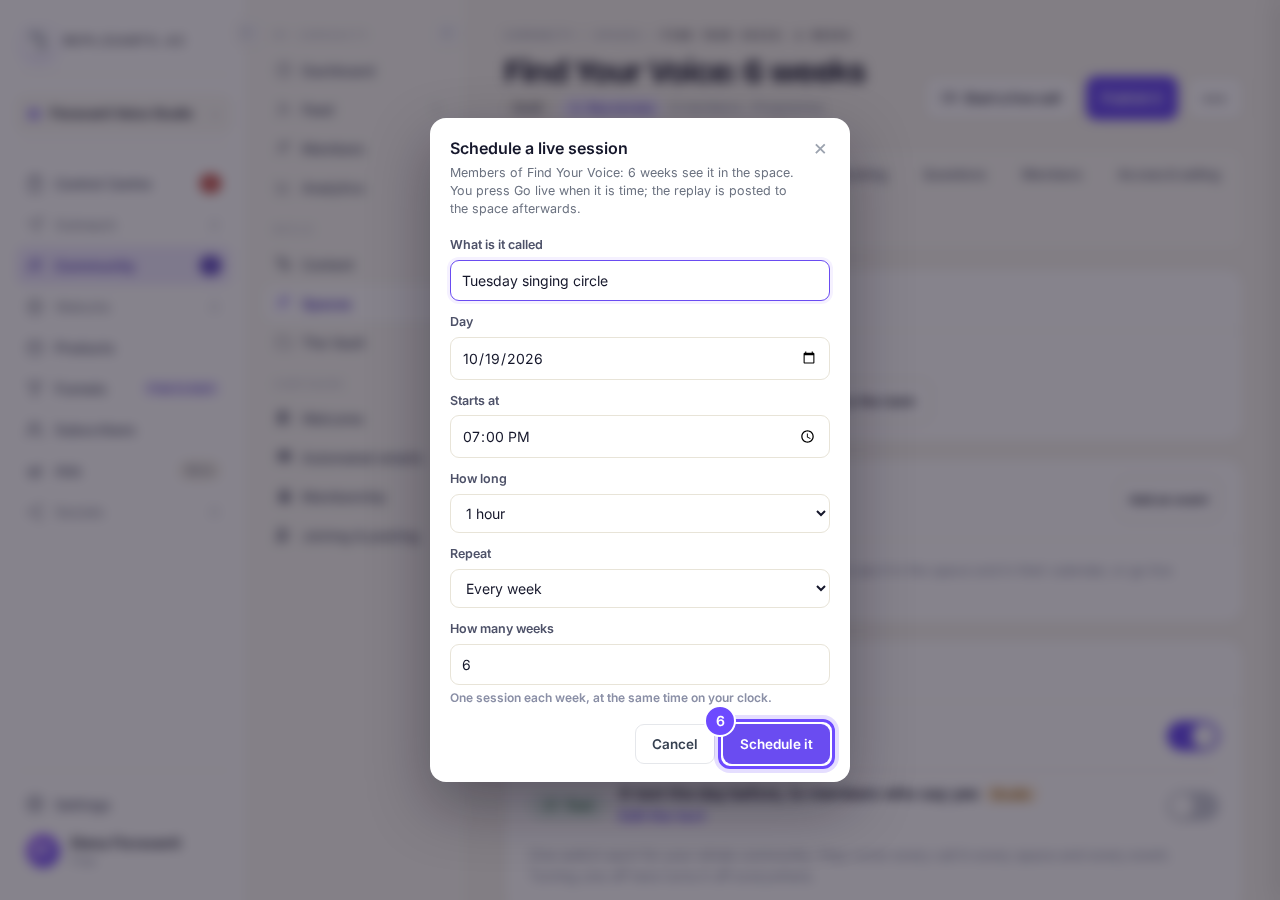
Schedule it.


More about weekly calls
Can I change or cancel one week?#
Yes. Press ••• on the session in Live, then Edit or Cancel session, and choose Only this session, this one and the ones after it, or all still to come.
Can I turn the reminder off?#
Yes. Under Reminders on Live, switch off The day before each call. It is one switch for your whole community, so it covers every call in every space.
Can I use my own Zoom link?#
Not for a new call: calls run in the space’s own room. A call made earlier on your own link keeps it.
Can I set up events in my community?
Related articles
Can I approve new members before they get into my community?
Yes. Switch on approval and anyone who asks to join waits in a Requests list in Members until you let them in, the way a private LinkedIn or Facebook group works. People you invite, and people who pay, still go straight in. About five minutes to set up.
Can I change a member's post before I approve it?
No. A post waiting for your approval can only be approved or rejected, so you cannot change a member's words. If a few words need changing, approve it and add a comment, or message the member and reject it.
Can I change the words in the posts Maya wrote before I approve them?
Yes. Open the post from Drafts on your Feed, press Edit, change the words and press Save changes. What you save is what goes out when you approve it. About a minute.