How do I update the picture of a page?
Pictures of your pages are taken only when you ask. Press the round arrows on a picture, or Make a picture where there is none, and a new one appears in a few seconds.
Updated 19 October 2026
Press the round arrows on your website's card
They are at the top right of the card on Your websites, and take a new picture of your home page. Until then a live site's card shows its name.
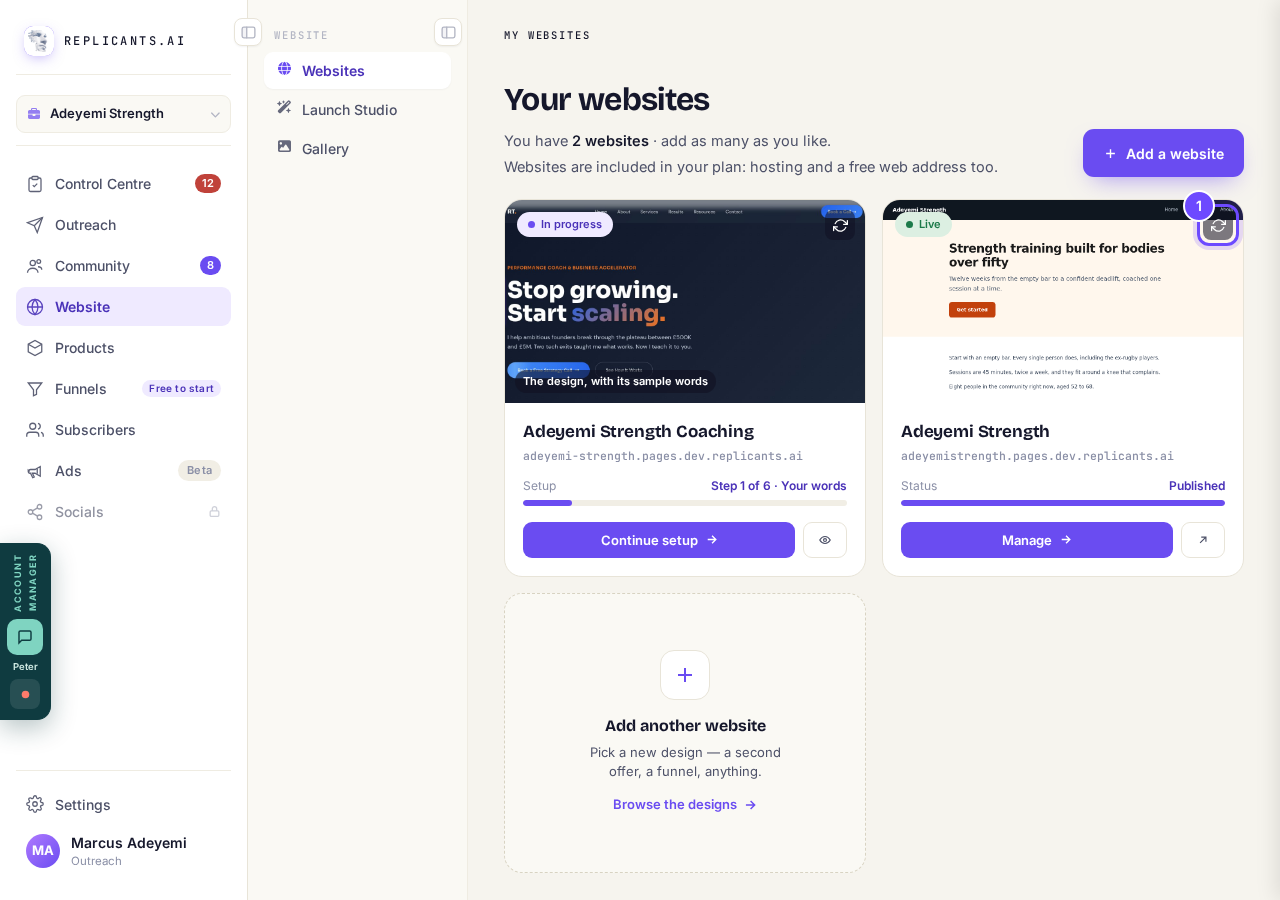
The round arrows, top right of the card.
Take me therePress Manage on your website
Every page has its own picture, and they are all on your site's page.
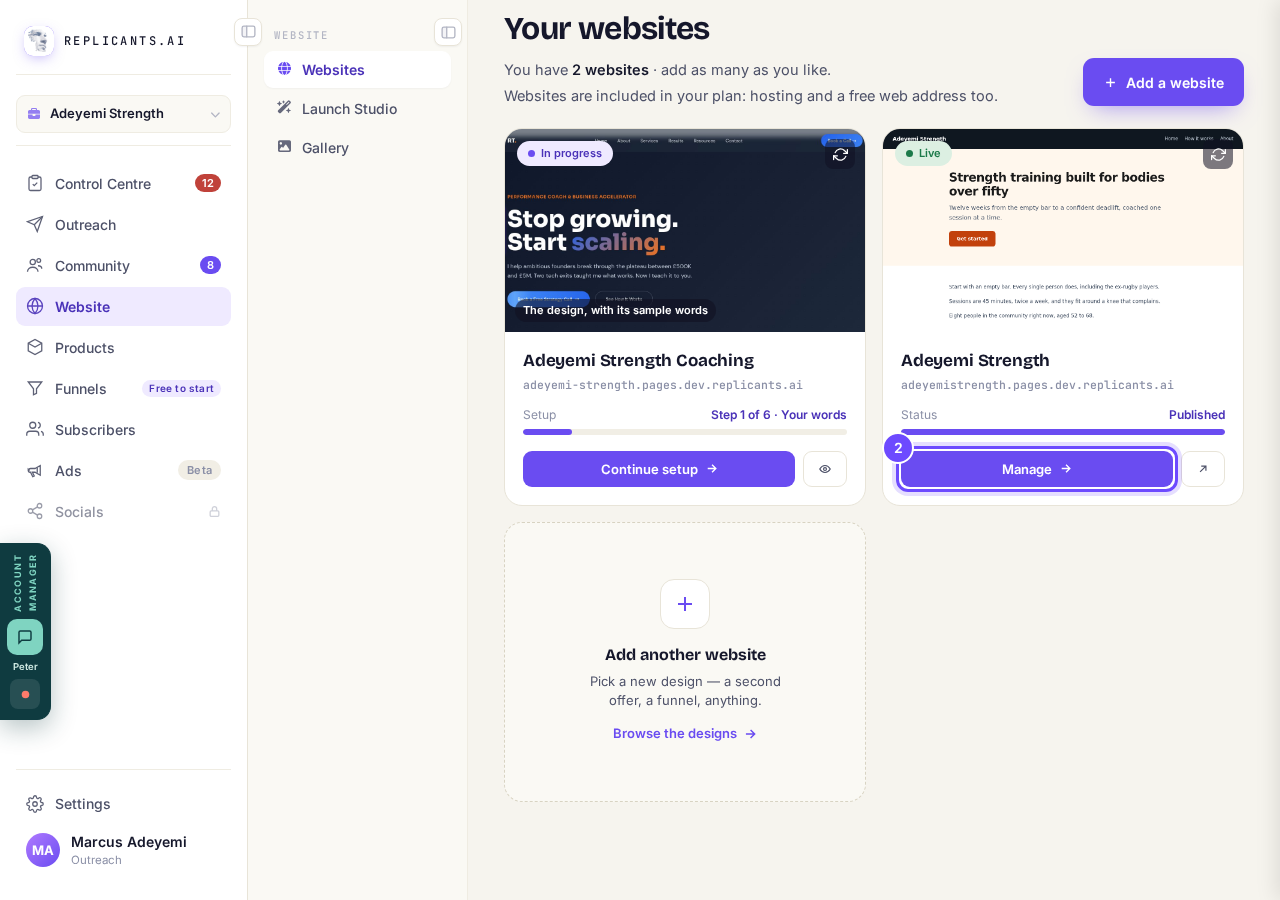
Manage, on the website's card.
Find the page in Pages, then press Make a picture
Scroll down to Pages: each page has a row with its picture on the left. A page with no picture yet says Make a picture; one that has a picture shows round arrows on it instead, faint until you point at them.
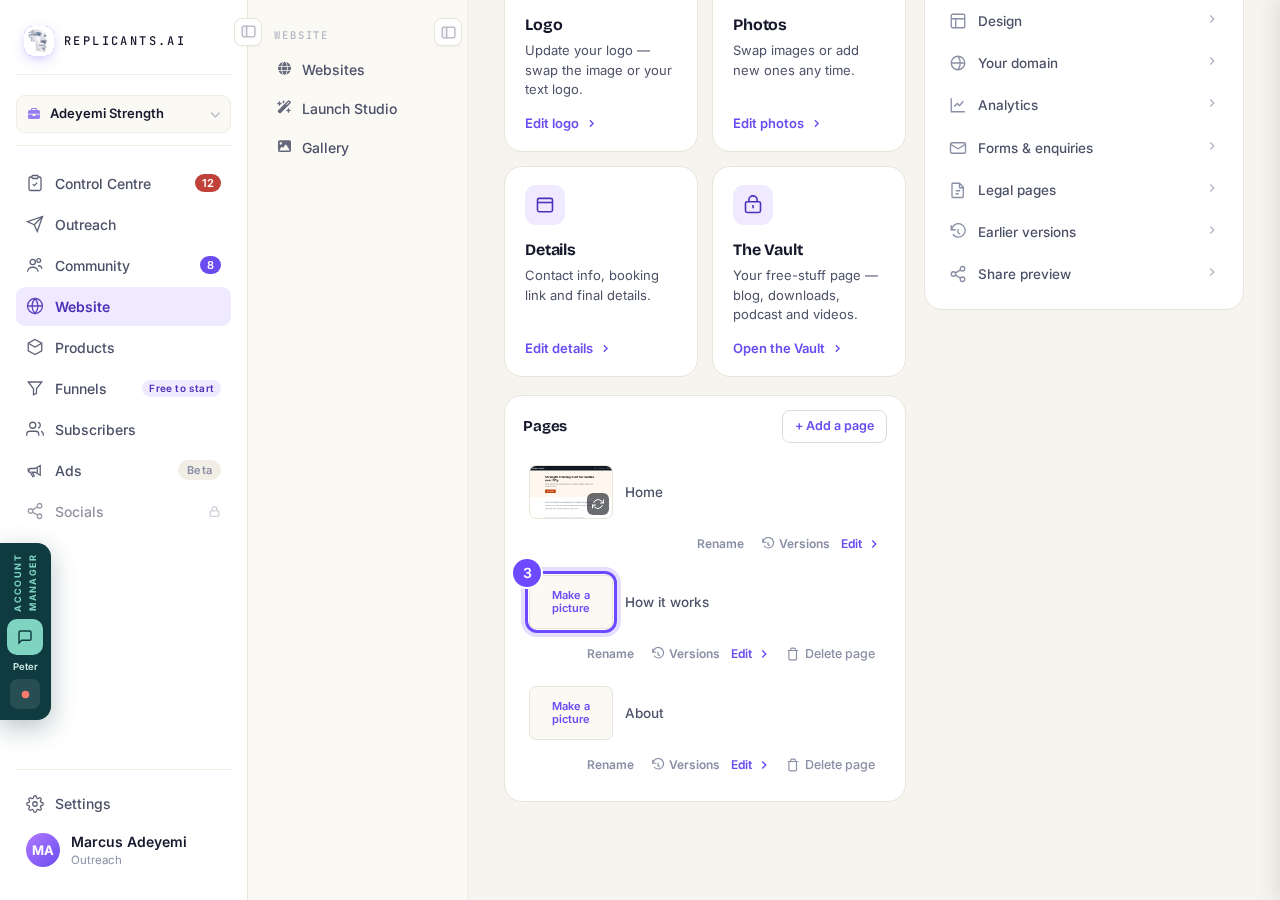
Make a picture, on a page that has none yet.
Wait a few seconds for the new picture
The button spins while it works, then the picture swaps in. If it says We are drawing a lot of previews right now, nothing has gone wrong: press again in a few seconds.
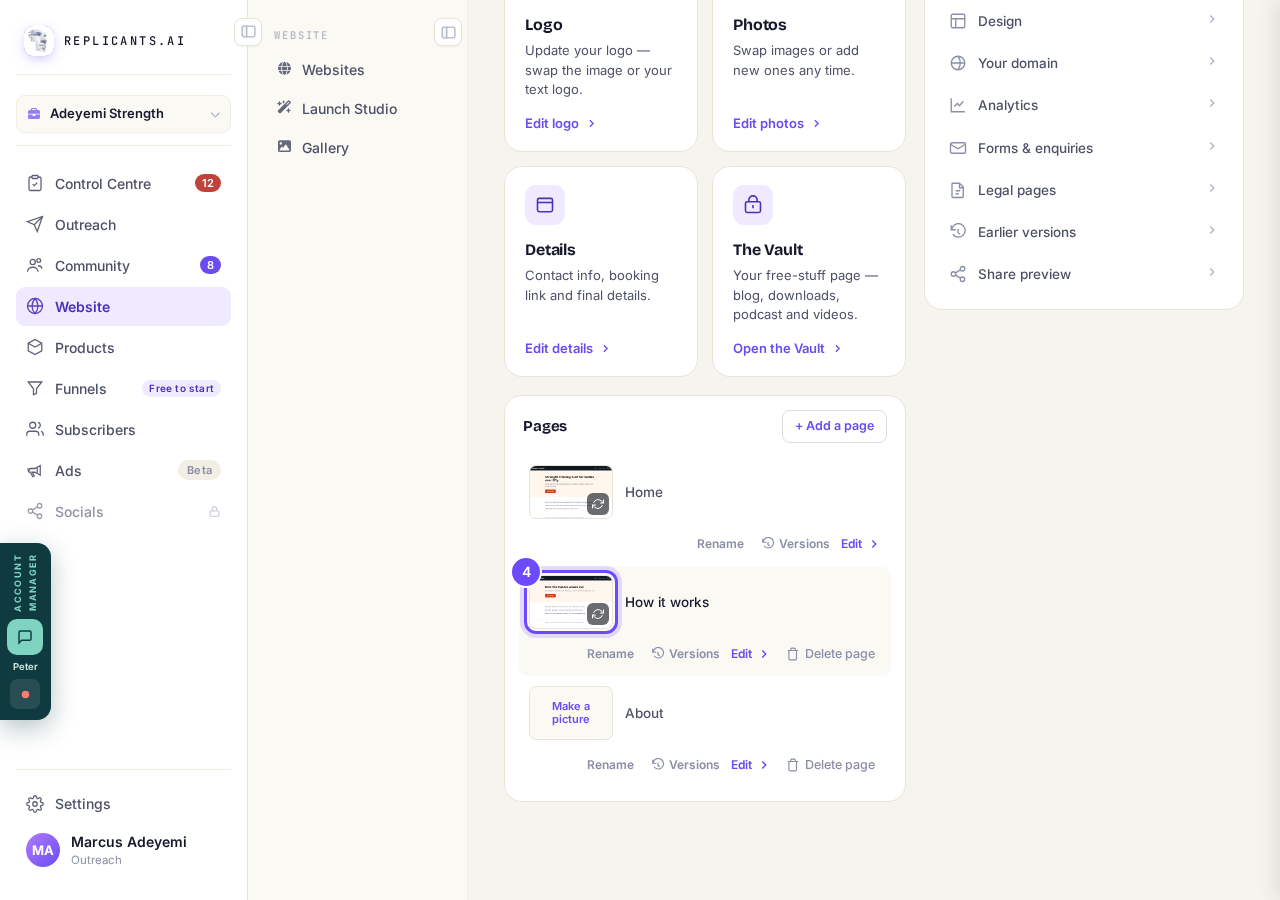
The page's new picture, with its round arrows.


How do I change one thing on my page, like a photo or a paragraph?
Related articles
How do I add a new page to my website?
You add a page from your website's Manage board. It starts as a draft in your site's design and goes live when you republish. About five minutes.
How do I add a privacy policy and terms to my website?
Every website has a Privacy Policy and Terms & Conditions, linked from the footer. We write them for you, or you upload your own. About two minutes.
How do I build my website?
Pick a design in the Gallery, bring in what you already have, answer a few of Maya's questions, then work through six short steps and press Publish my website. Everything is saved as you go, so you can stop and come back.