
How do I build my first course?
Press New course and the guide takes you through six steps: Concept, Plan, Content, Look, Delivery and Publishing. Maya plans your course in about a minute, and your answers save as you go.
Updated 18 October 2026
Press New course
Press Products in the main menu, then New course at the top of your courses.
On a phone, press the menu button (three lines, top right), then Products, then Courses.
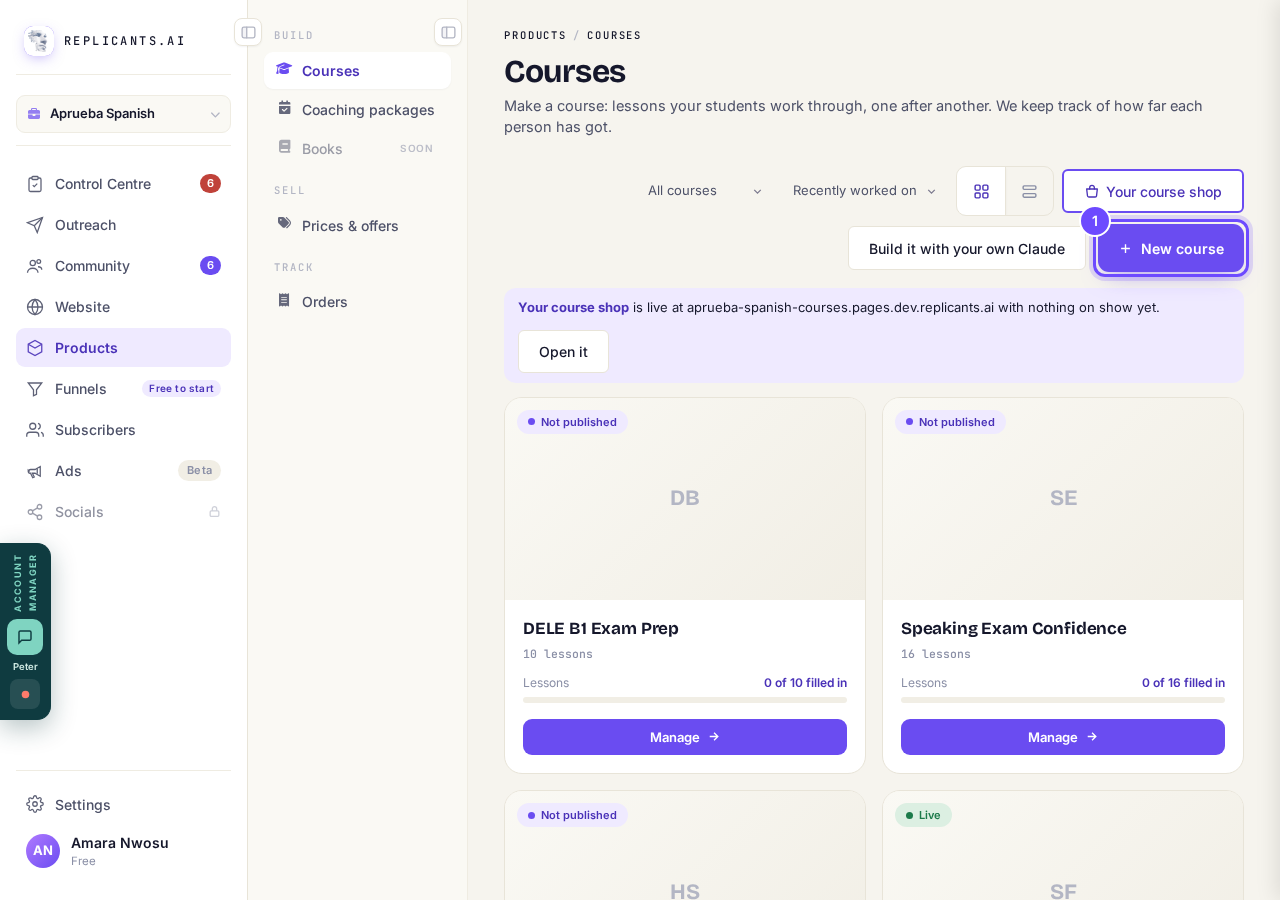
New course, at the top of your courses.
Press Build a new course, then Continue
Press Build a new course, then Continue →.
The screen opens with Bring my course across ticked, which is for a course that already exists elsewhere.
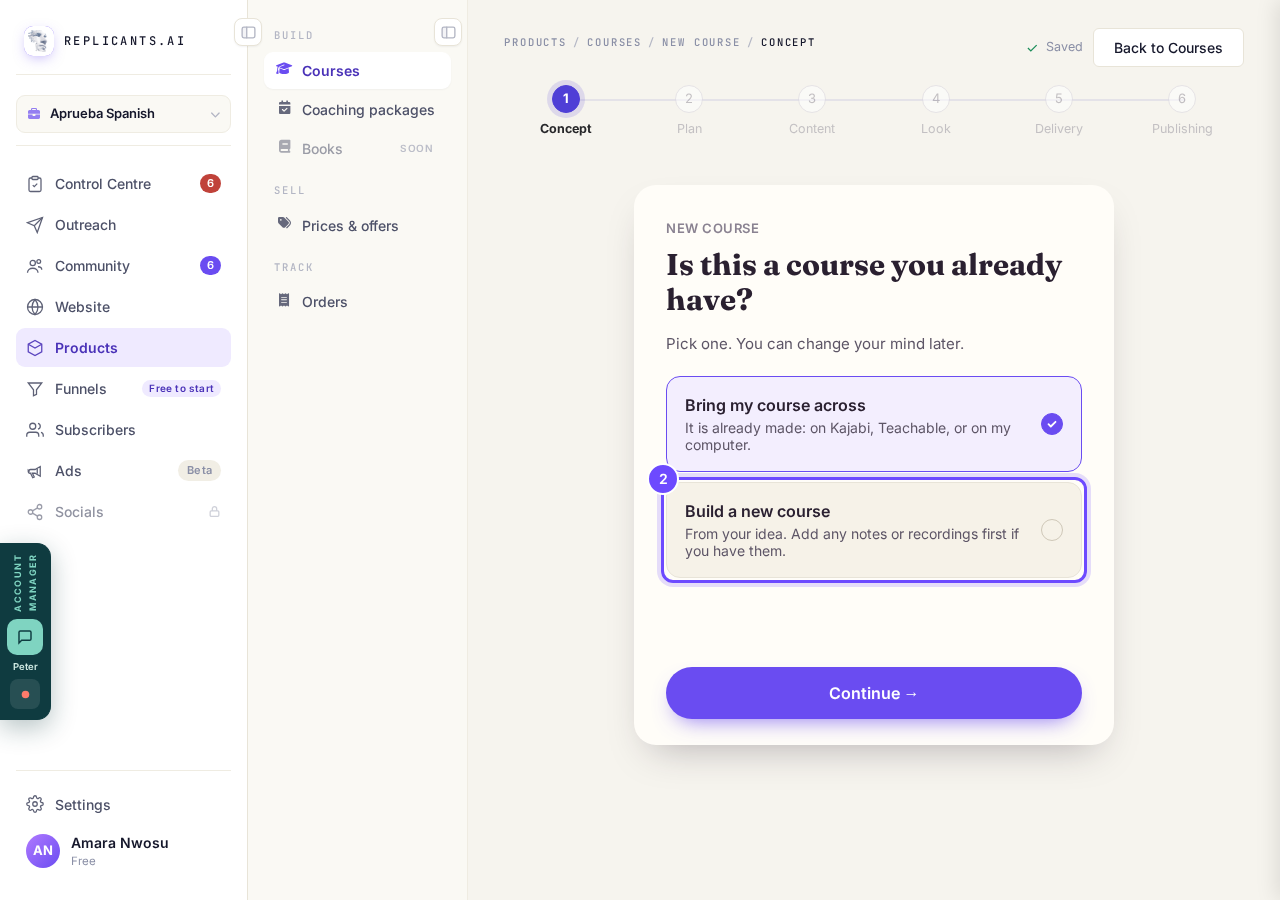
Build a new course. Bring my course across is ticked when the screen opens.
Answer Maya's questions (Concept and Plan)
Speak or type each answer, then press Write my plan → on the last one.
Maya plans your modules and names every lesson in about a minute; the lessons start empty.
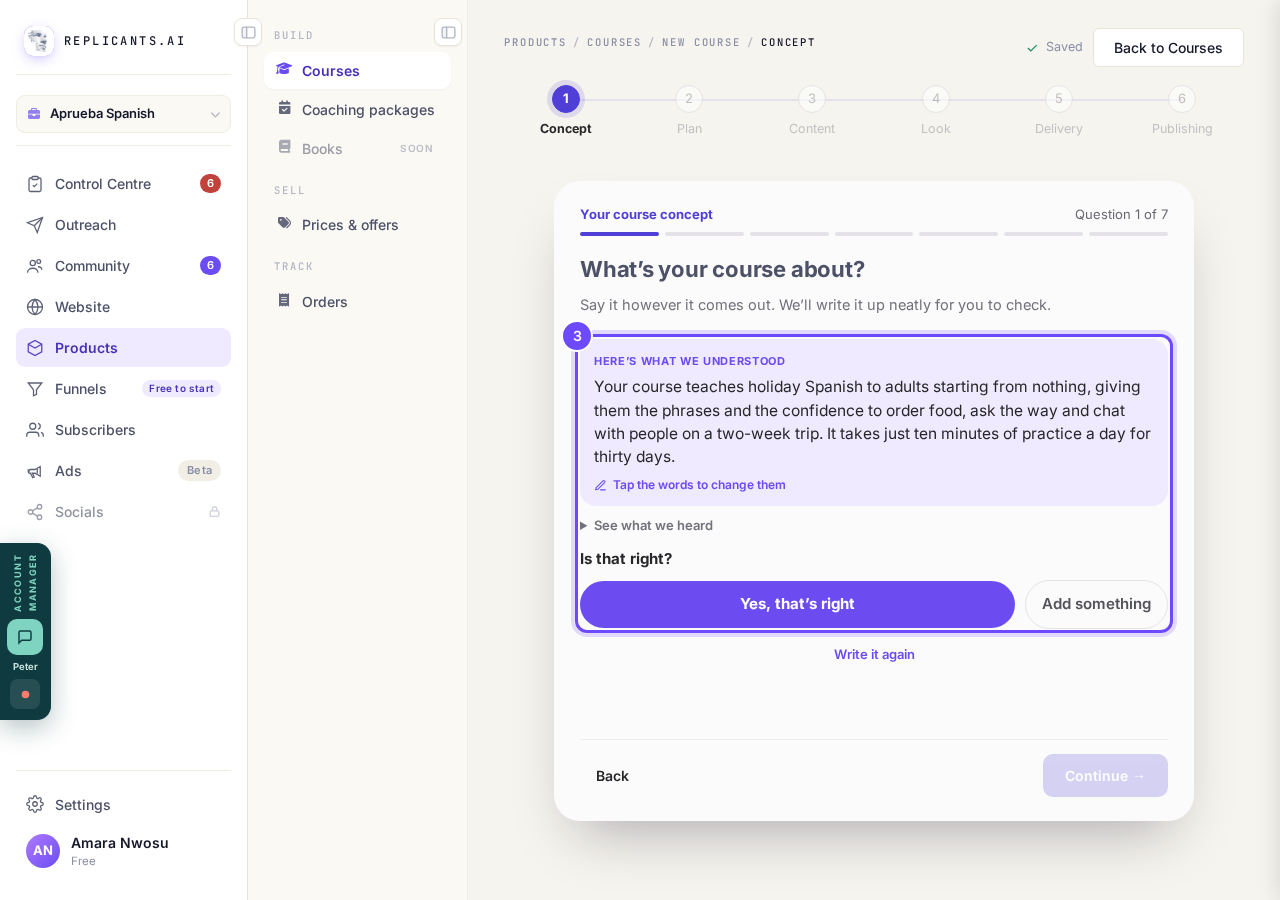
Steps 1 and 2: Maya's questions, then your plan.
Fill in your lessons (Content)
Press Add content on a lesson to give it words, a video, a download, slides or audio.
Maya can write the words for you, and empty lessons stay hidden from students.
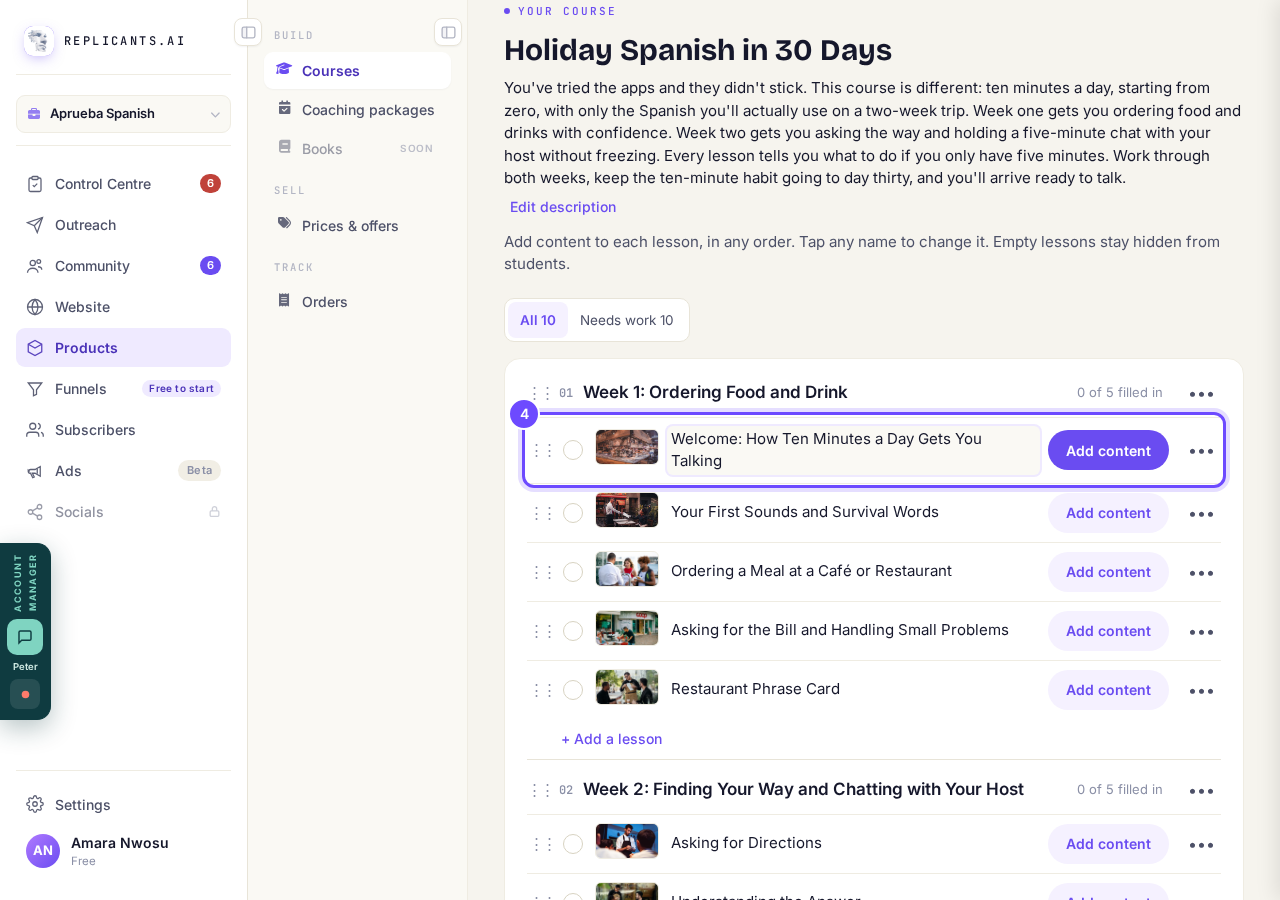
Step 3: Add content on a lesson.
Choose how it looks and opens (Look and Delivery)
Pick what you like, press Use this look →, then choose how your modules open.
Your course gets its web address once it has a look.
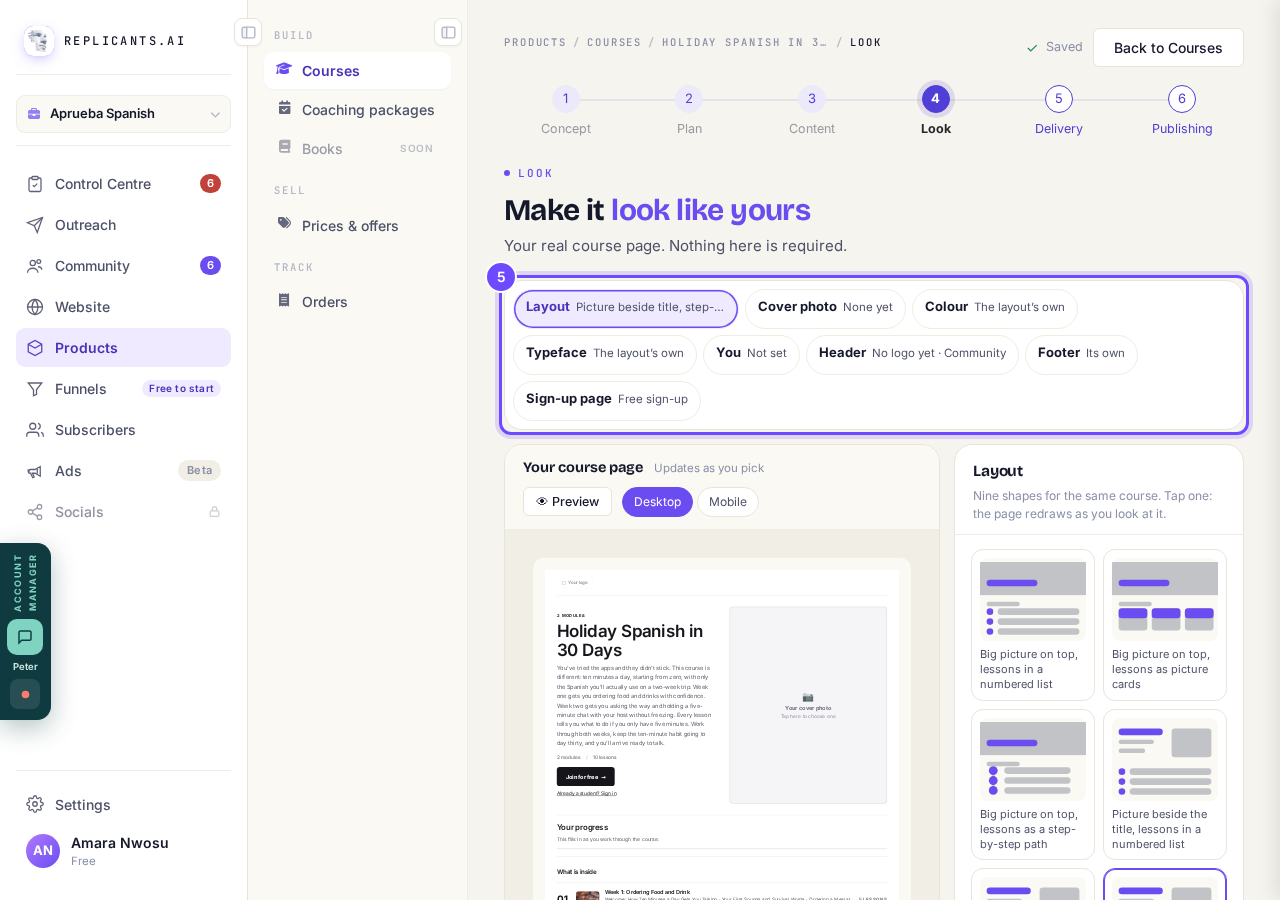
Step 4: what you can change on your course page.
Press Publish (Publishing)
Check Before you publish, then press Publish.
Until one lesson has something in it, the button is grey and says Fill in one lesson first.
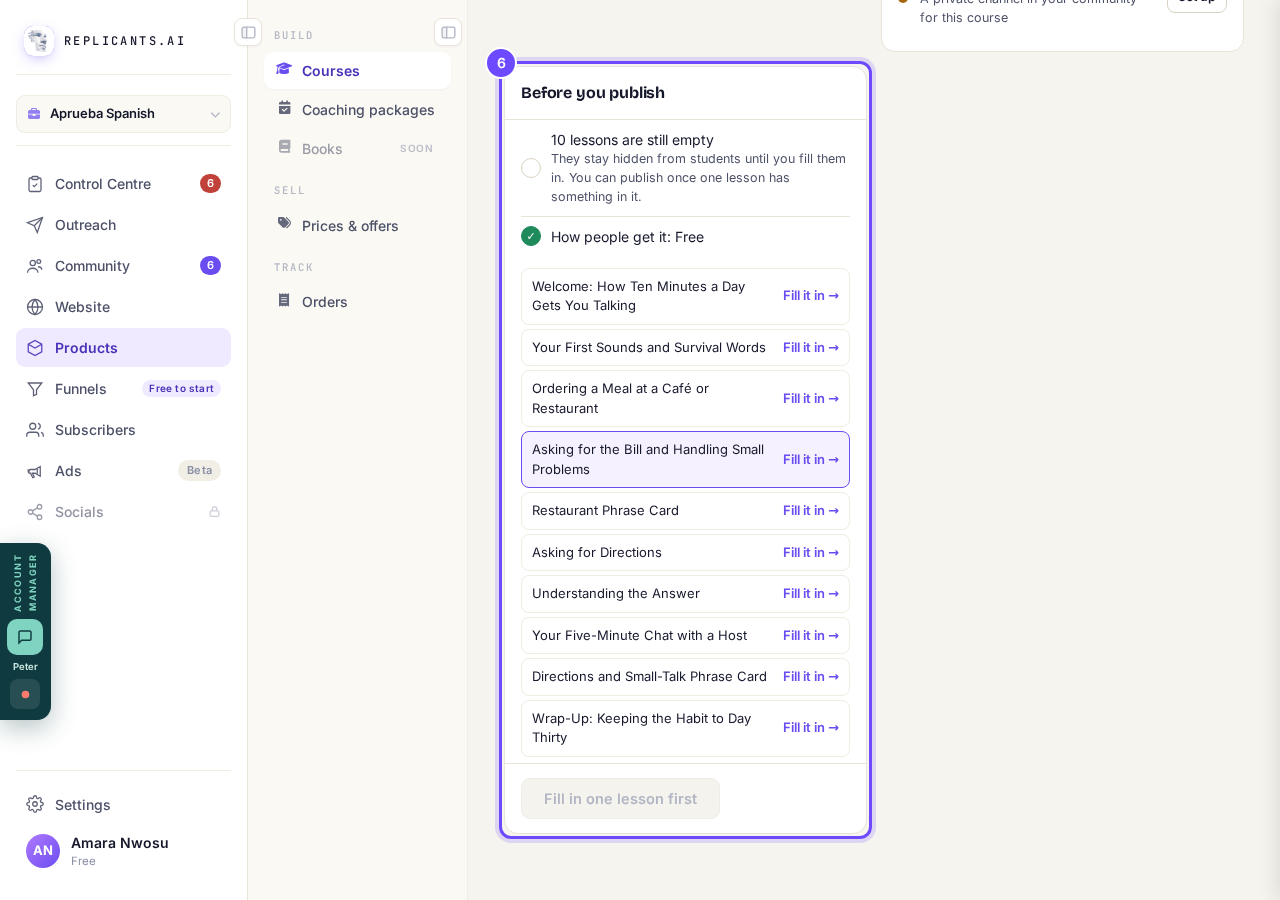
Step 6: Before you publish.


Questions coaches ask
Can I stop halfway and come back?#
Yes. Press Continue setup on the course's card under Courses to carry on where you left off.
Does Maya's writing cost anything?#
It uses your account's AI allowance. If you reach today's AI limit, the screen says so and Maya stops; anything she has written stays.
What next?#
Read when it's all in your head, turning notes into a course or publishing your course.
Once you type a name on the bring-across cards, pressing Build a new course later does not undo it, and Write my plan → lands you back on those cards. Go to Courses, press Delete this draft on that course, then press New course again.
I don't have any course content yet. How does Maya help me build it?
Related articles
Can I see a real course before I build mine?
Yes. Claire's free course, Small Steps, is a real course you can join as a student in about five minutes.
Can I turn my workbook, notes or recordings into a course?
Yes. Add your workbook, notes, slides or recordings at the start of a new course and Maya reads them; the questions arrive already answered, and your plan is built from them.
How does my course help students finish?
Your course has a tool for students who drift off, get stuck or feel alone, and you switch them all on or off in one place: Delivery, at the top of your course. Looking through them takes about five minutes.