
How does my course help students finish?
Your course has a tool for students who drift off, get stuck or feel alone, and you switch them all on or off in one place: Delivery, at the top of your course. Looking through them takes about five minutes.
Updated 18 October 2026
Press Delivery at the top of your course
Open Products, then Courses, press Manage on your course, then press Delivery. On a phone, open the menu at the top right first, and slide the row of words under the course name to the left to find Delivery.
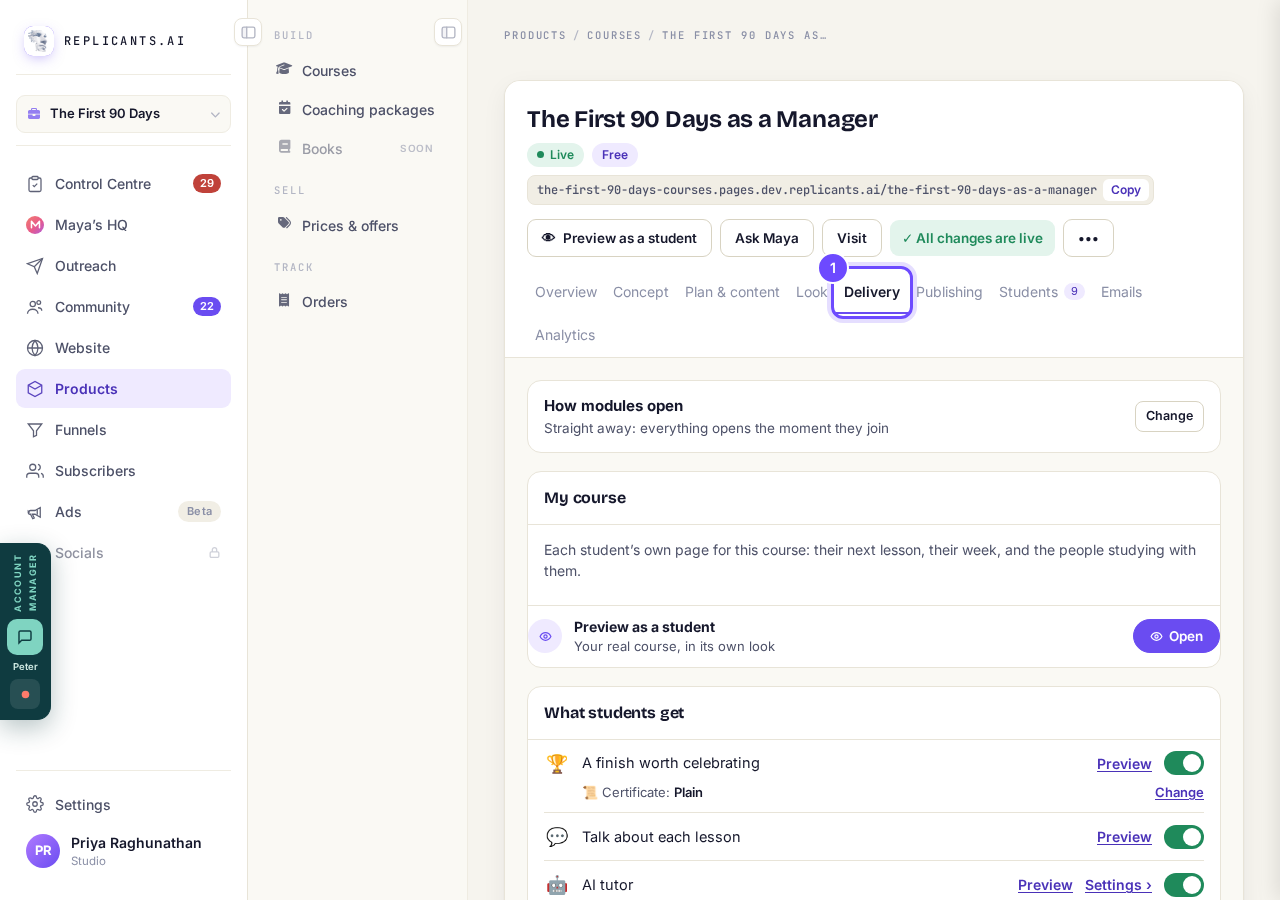
Delivery, at the top of your course.
Choose how your modules open
Press Change beside How modules open. The screen says courses that open one module at a time get finished about three times as often.
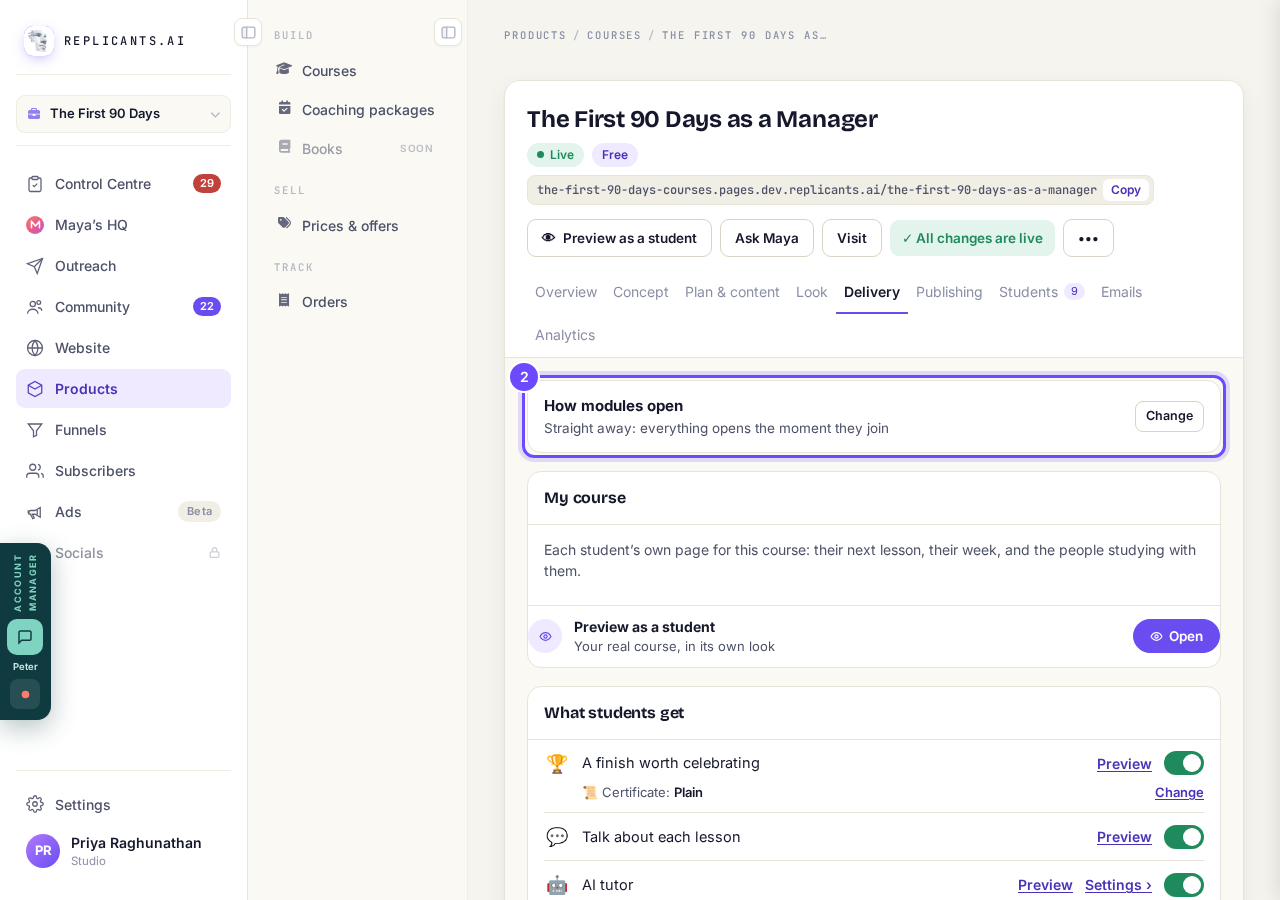
How modules open, with Change.
Press the switch beside each tool you want
Each tool under What students get has its own switch, and green is on. It works for your students straight away.
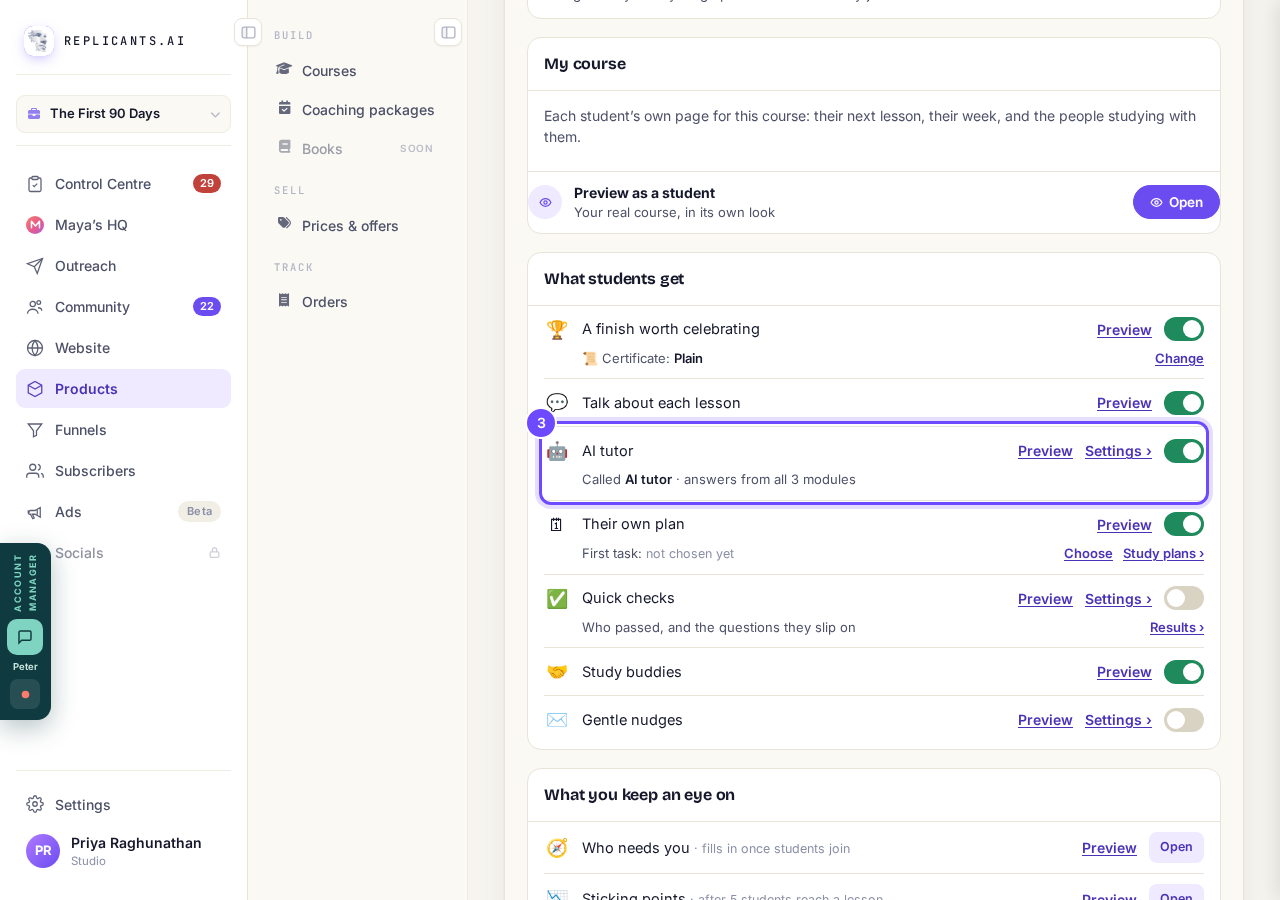
One tool: Preview, Settings and its switch.
Press Preview to see a tool first
Pick Preview as a student (your real course, as a student sees it) or Preview as the coach (your dashboard with 12 sample students). Nothing is saved or sent, though the AI tutor's preview uses your AI credit.
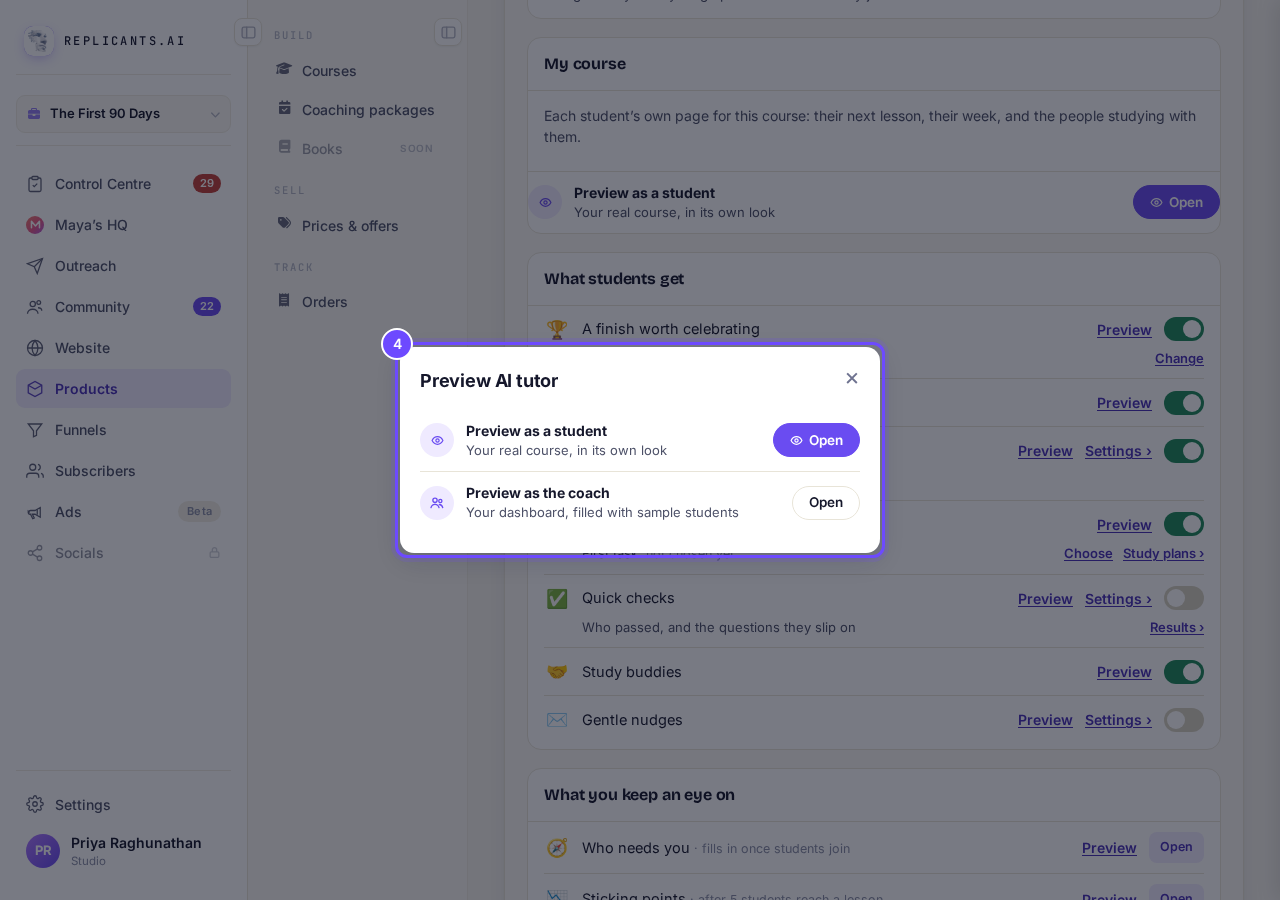
Preview as a student, or as the coach.
Press Settings › to set a tool up
Only the AI tutor, Quick checks and Gentle nudges have settings, such as the tutor's name. Press Done to close.
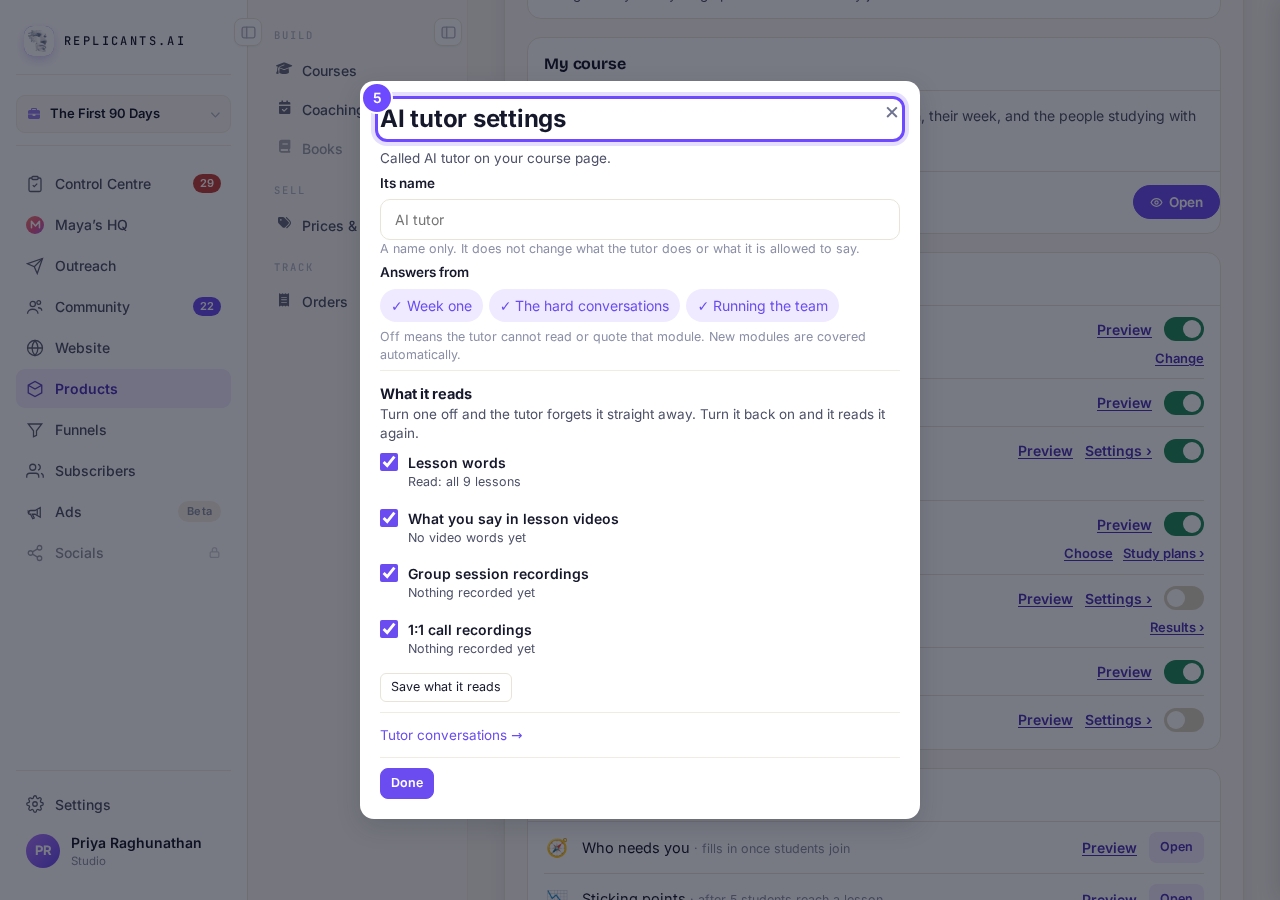
The AI tutor's settings.


Every tool, in one line
| Tool | For your students | At the start | AI credit |
|---|---|---|---|
| How modules open | Everything at once, one module at a time, or as they finish. | One module a week (the guide) | No |
| A finish worth celebrating | A trophy when they finish. The certificate is its own setting. | On | No |
| Talk about each lesson | Questions and wins beside every lesson. | On | No |
| AI tutor | Answers their questions from your lessons. | Off* | Yes: Each question a student asks uses your AI credit, usually one AI request and never more than three. |
| Their own plan | A dated plan that fits your course into their week. | Off* | No |
| Quick checks | Two questions after a lesson, approved by you. | Off | About one AI request each time Maya drafts a lesson's check |
| Study buddies | Pairs them with someone at the same point. | Off* | No |
| Gentle nudges | One email when they go quiet, pointing at their lesson. | Off | No |
| Who needs you | For you: who might stop, and why. | On | No |
| Sticking points | For you: which lesson loses people. | On | Only for written suggestions: one AI request |
*Off on courses made since 27 September 2026; on for older courses. Study buddies needs a community.
The tools help students keep going; nothing here promises how many will finish. Who needs you, Sticking points and Study buddy pairs (under What you keep an eye on) fill in once students join; Sticking points needs 5 students to reach a lesson. If the top of your course shows Publish changes, press it once. That brings your students today's tools and anything you have changed on your course page.
How do I choose when each module opens?
Related articles
Can I see a real course before I build mine?
Yes. Claire's free course, Small Steps, is a real course you can join as a student in about five minutes.
Can I turn my workbook, notes or recordings into a course?
Yes. Add your workbook, notes, slides or recordings at the start of a new course and Maya reads them; the questions arrive already answered, and your plan is built from them.
How does the AI tutor answer my students' questions?
A student stuck at 10pm has nobody to ask. Switch on the AI tutor on the Delivery screen and it answers them there and then, only from what you put in your course, naming the lesson it used.