
How do I see which students might stop?
Press Delivery on your course, then Open beside Who needs you: the students most likely to stop, why, and an email ready for each. Nothing is sent unless you send it.
Updated 18 October 2026
Press Manage on your course
It is under Products in the main menu; on a phone, press the menu button, Products, then Courses.
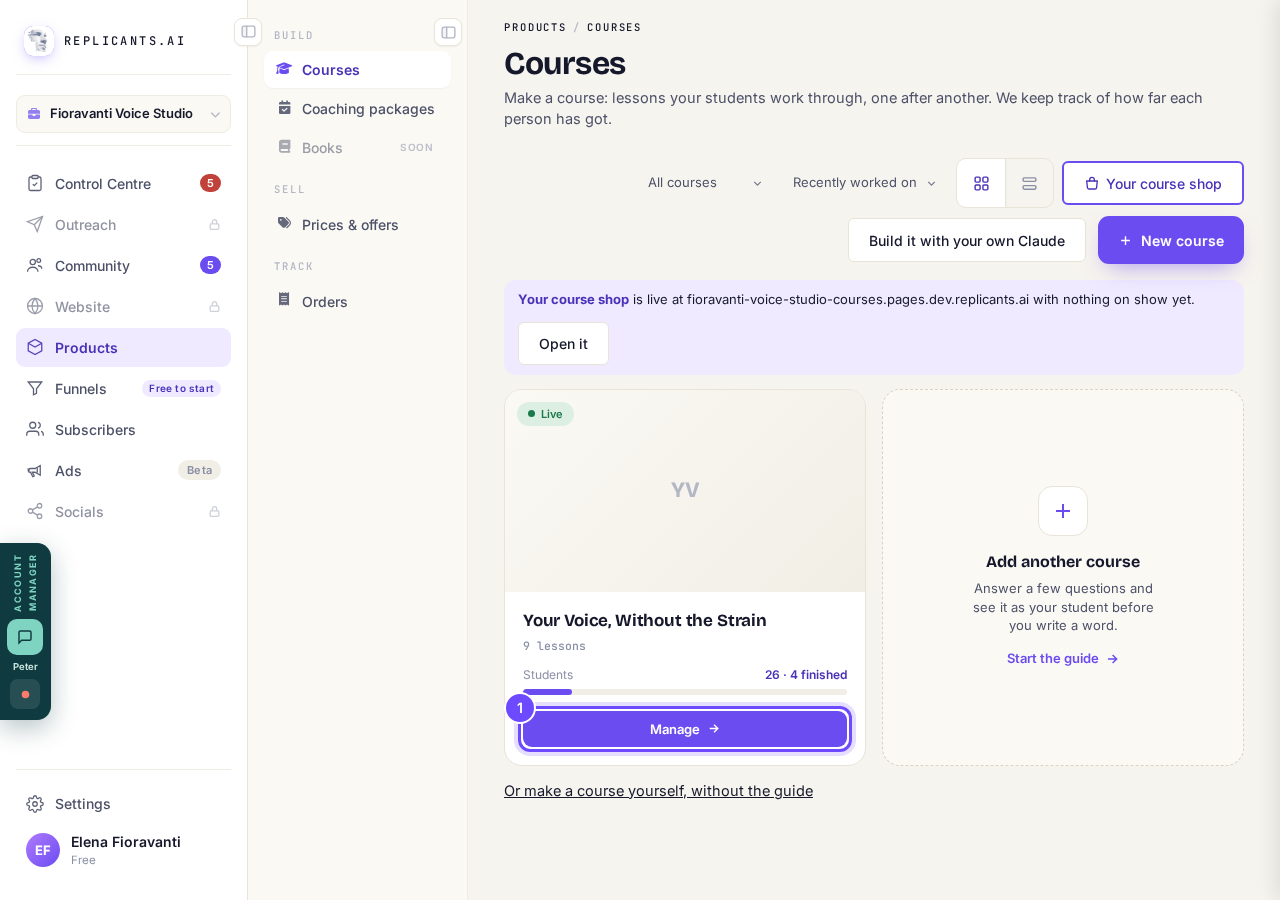
Manage, on the course's card.
Press Delivery at the top, then Open beside Who needs you
Preview beside it shows the page with sample students.
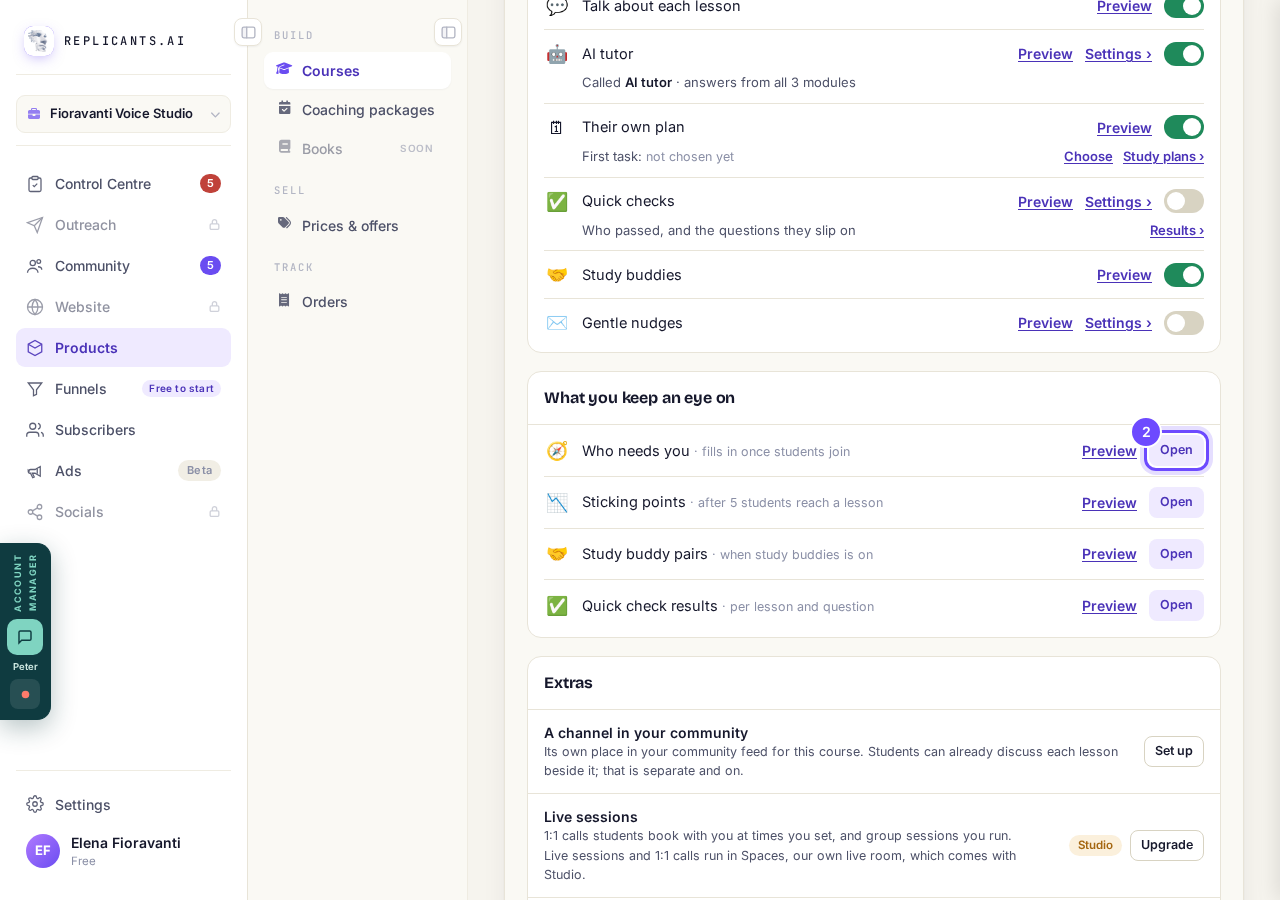
Open, beside Who needs you.
Press Send a nudge beside a student
Each row says what they were doing and why they might stop; the email is already written from that.
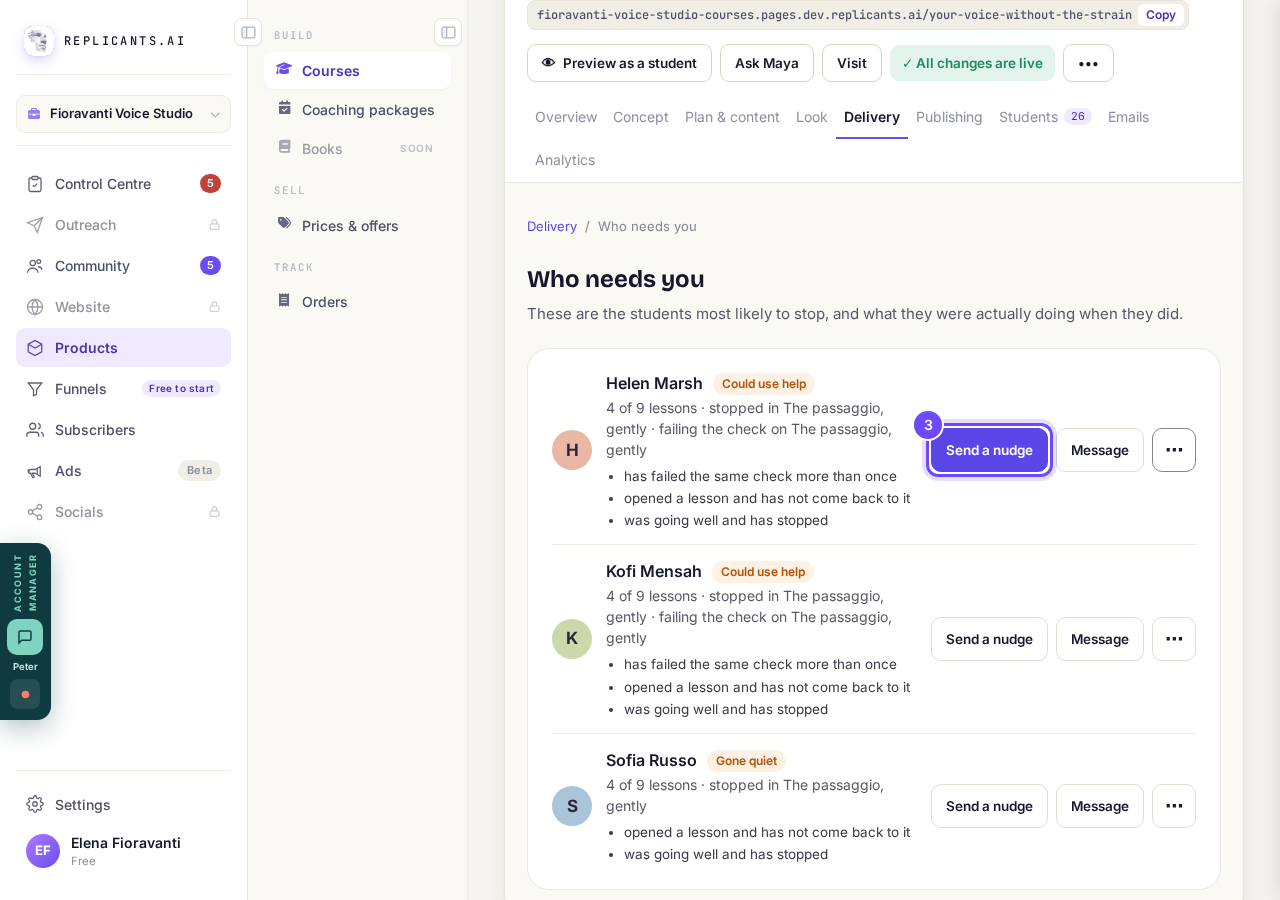
Send a nudge, beside the student.
Change anything you like, then press Send to and their name
It goes only to this student, with a button that signs them straight in; Not now closes it with nothing sent.
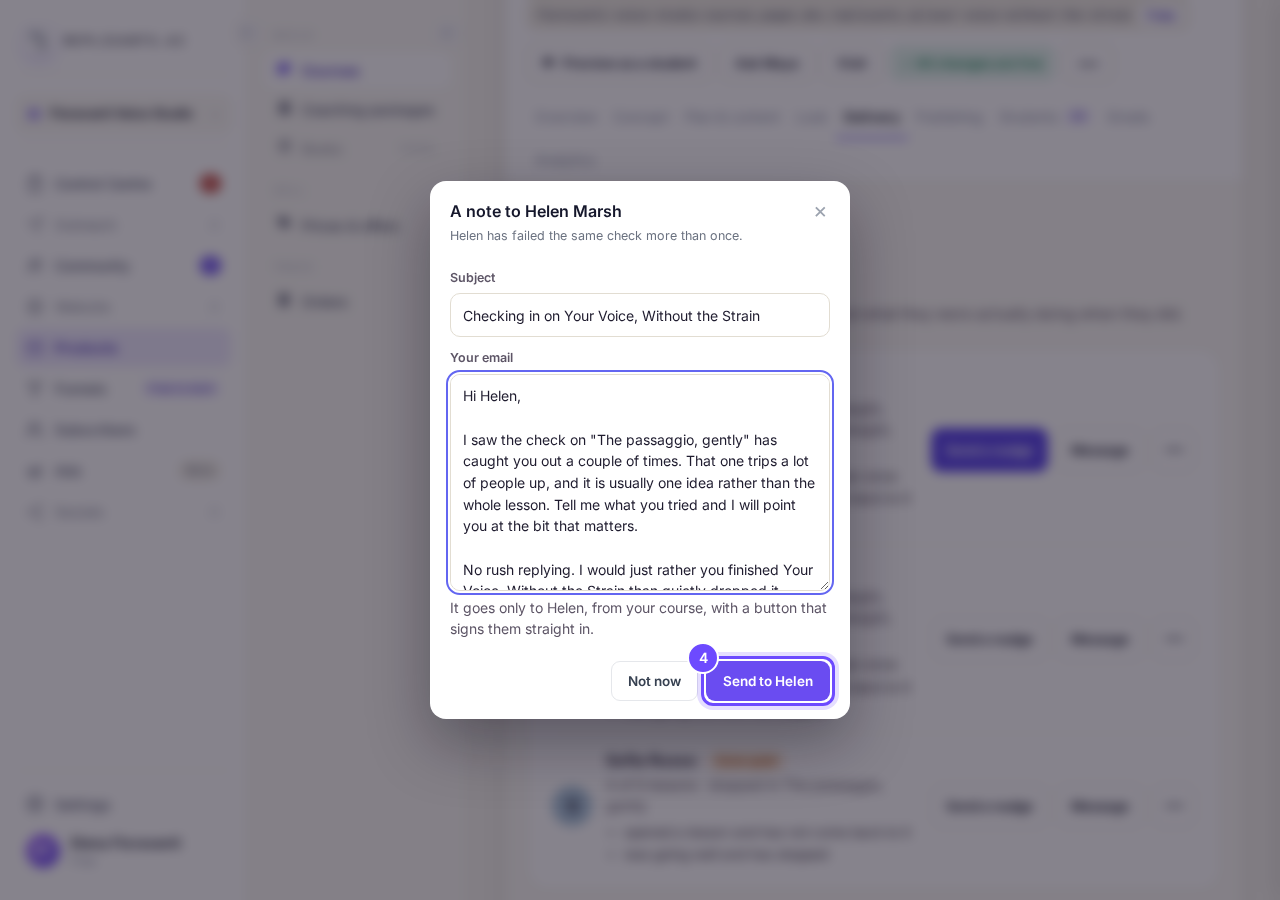
The drafted email, with Send to Helen.
Or press Message to write in your community
It works for students who are members of your community; Copy the suggested message in the three dots gives you the words to send your own way.
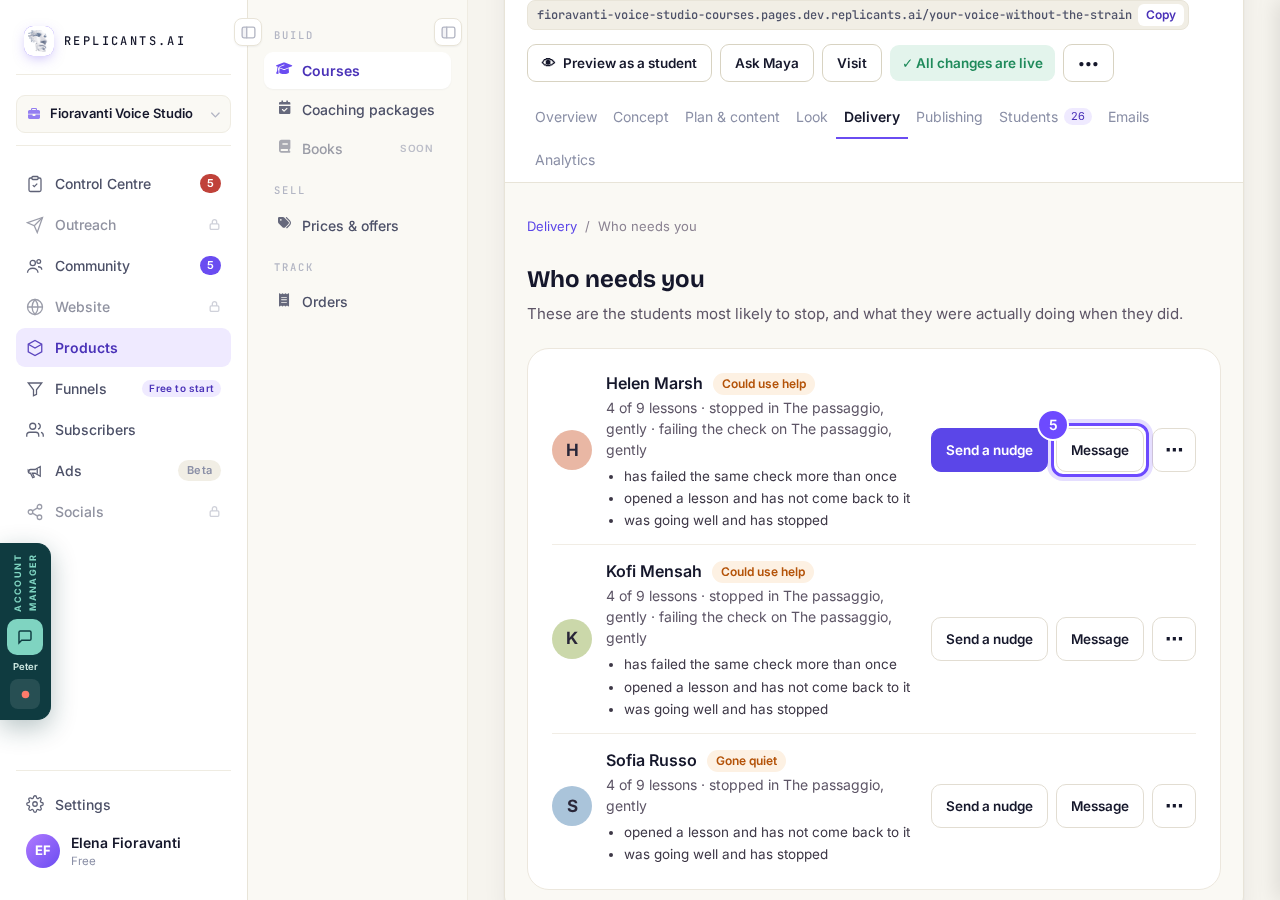
Message, beside Send a nudge.


What it looks for, in the words you will see
| What you will see | What it means |
|---|---|
| has failed the same check more than once | They tried a lesson's quick check at least twice and have not passed it. |
| opened a lesson and has not come back to it | A lesson they started has sat unfinished for 5 days or more. |
| was going well and has stopped | They were active one to three weeks ago and not in the last 7 days. |
| keeps asking about the same lesson without moving on | Three or more questions to the AI tutor about one lesson in 30 days. |
| has not done the first task | A week after joining, they have not done the lesson you picked as the first task. |
| is behind the plan they set themselves | Two or more lessons behind their own study plan. |
| keeps stopping partway through the videos | They have left two or more videos before halfway. |
| has never opened anything | Three days after joining, they have not opened a lesson. |
The list is put together fresh each time you open it and is not emailed to you, so open it when you check your course; Needs you today on the Overview starts with the same students. It shows the three you can help most, and students who finished never appear.
How do I find where students get stuck?
Related articles
Can I see a real course before I build mine?
Yes. Claire's free course, Small Steps, is a real course you can join as a student in about five minutes.
Can I turn my workbook, notes or recordings into a course?
Yes. Add your workbook, notes, slides or recordings at the start of a new course and Maya reads them; the questions arrive already answered, and your plan is built from them.
How does my course help students finish?
Your course has a tool for students who drift off, get stuck or feel alone, and you switch them all on or off in one place: Delivery, at the top of your course. Looking through them takes about five minutes.