
How do I find where students get stuck?
Press See sticking points on your course's Overview to find the lessons people start and do not finish. Fixing one helps every student who comes after.
Updated 18 October 2026
Press Manage on your course
It is under Products in the main menu; on a phone, press the menu button, Products, then Courses.
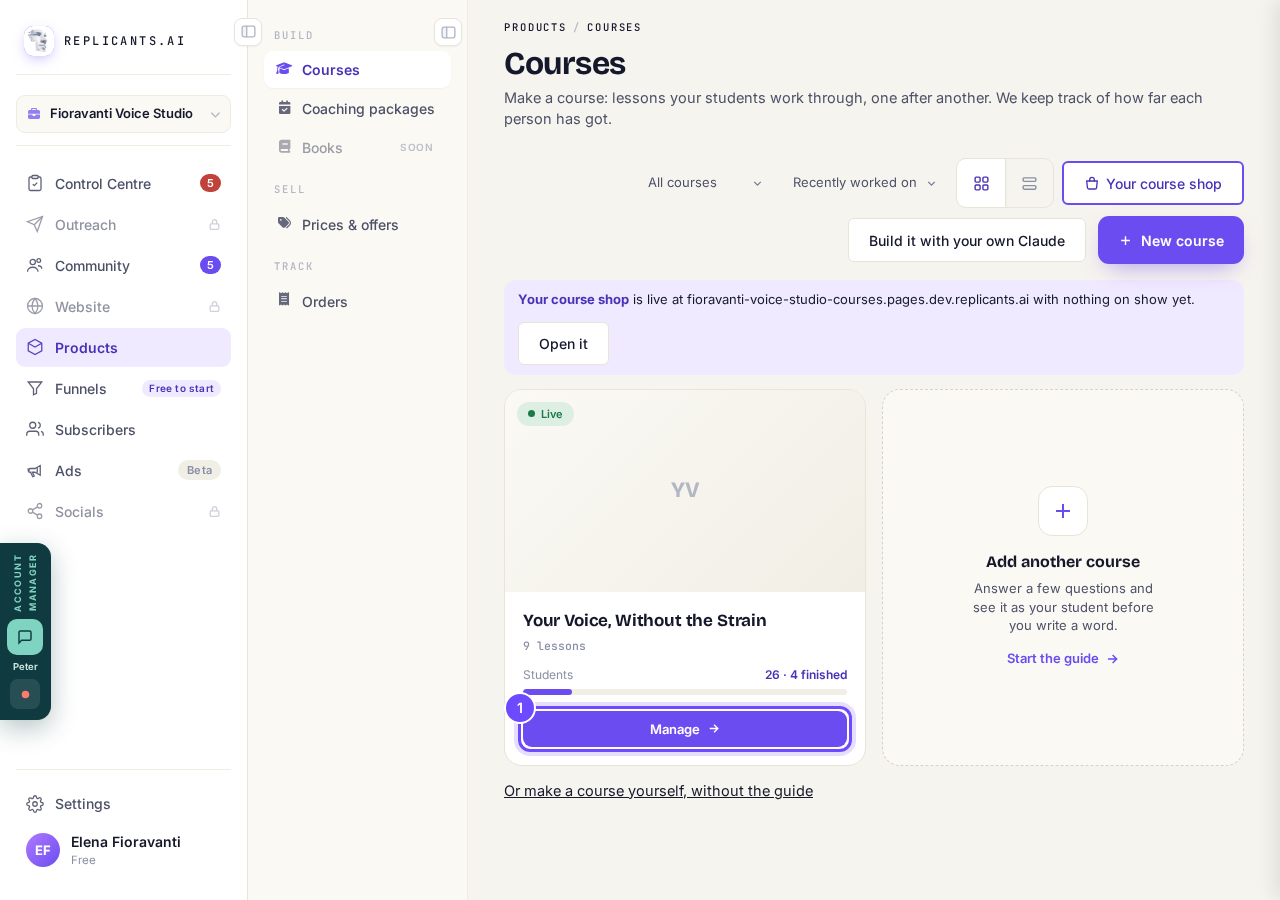
Manage, on the course's card.
Press See sticking points
It is at the bottom of the Where they get stuck card on the Overview.
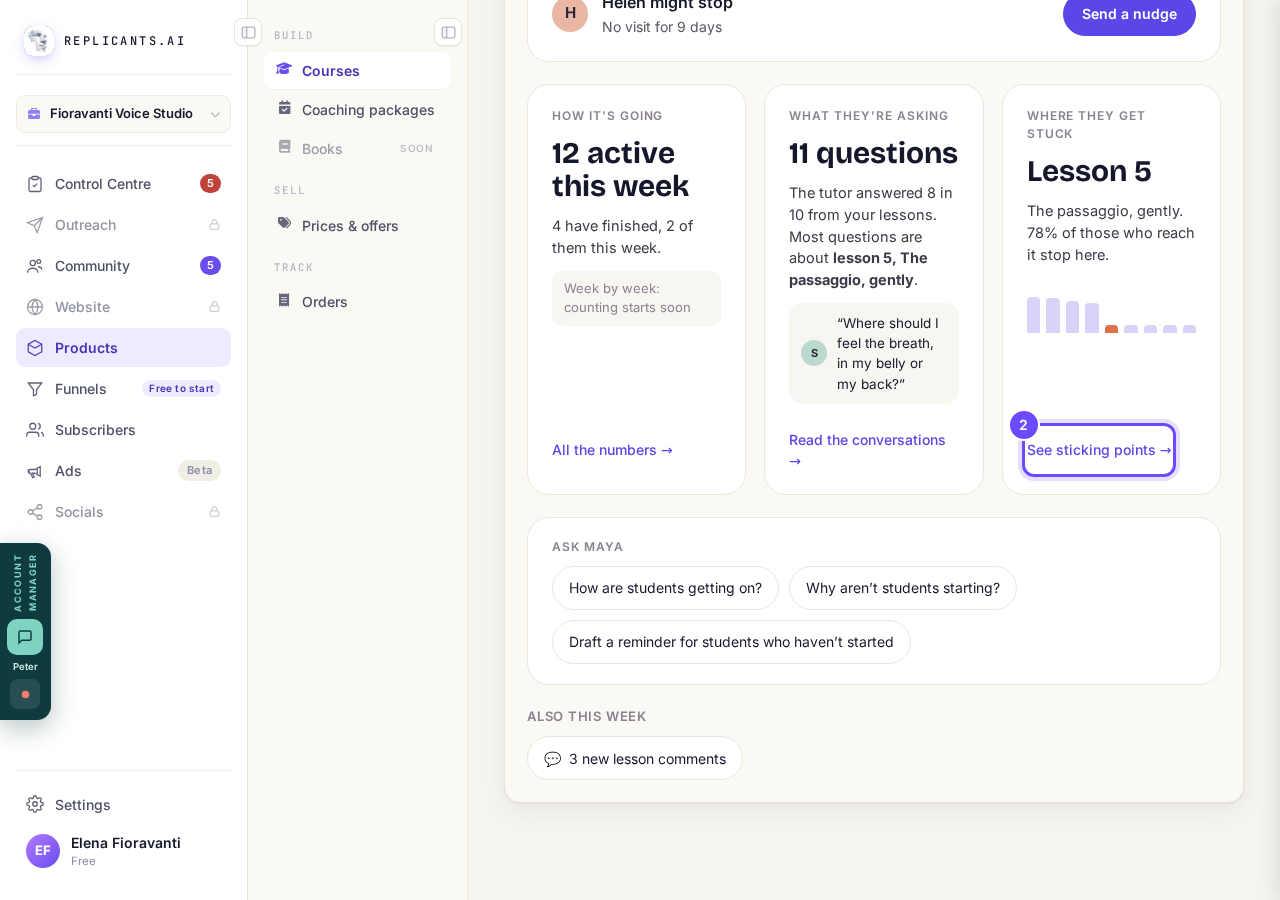
See sticking points, in the Where they get stuck card.
Read Lessons people do not finish
Each lesson here was opened by at least 5 students and finished by fewer than 4 in 10 of them; Videos people stop partway through and Checks most people get wrong follow it when there is something to show.
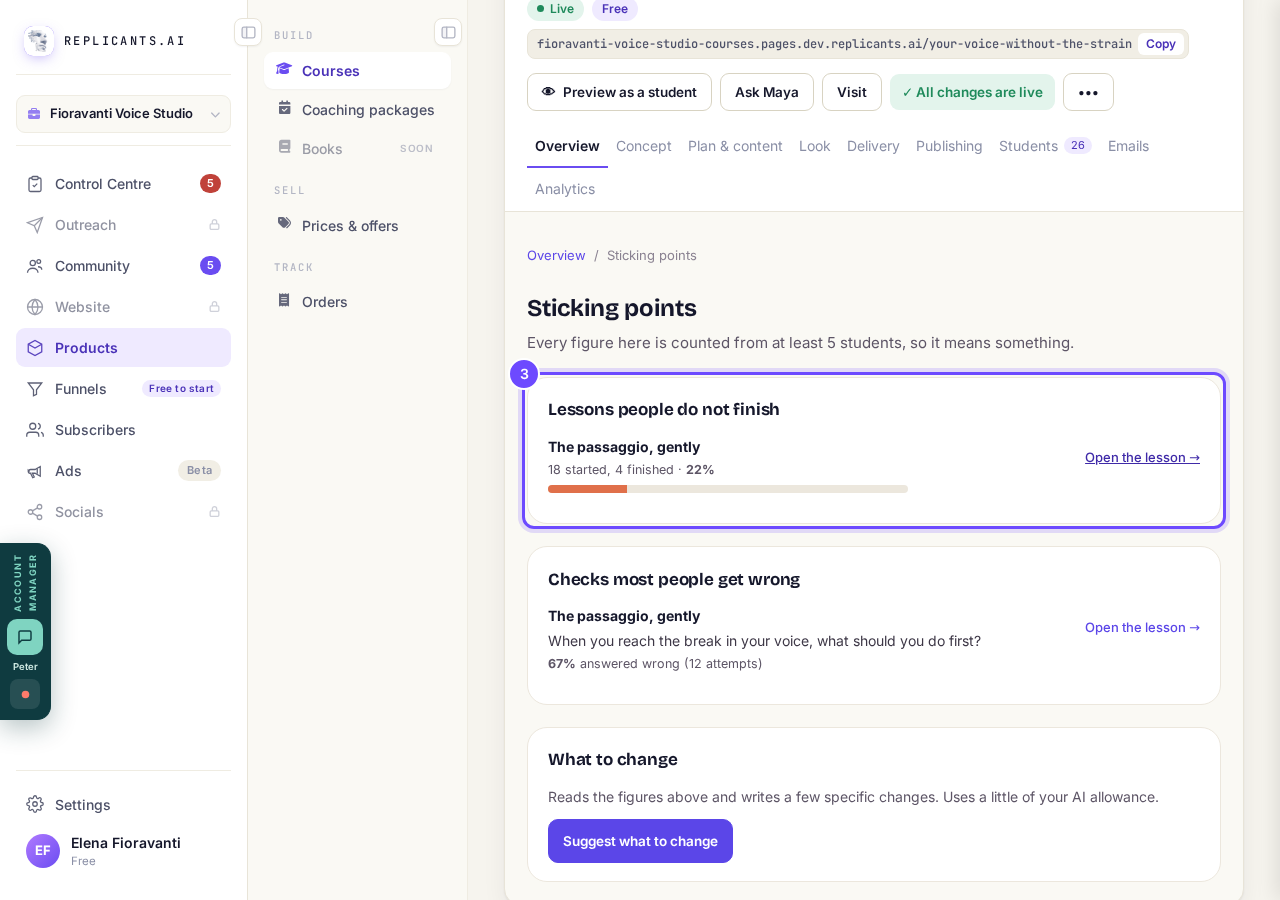
Lessons people do not finish, with started and finished counts.
Press Open the lesson
It opens that lesson so you can make it clearer straight away.
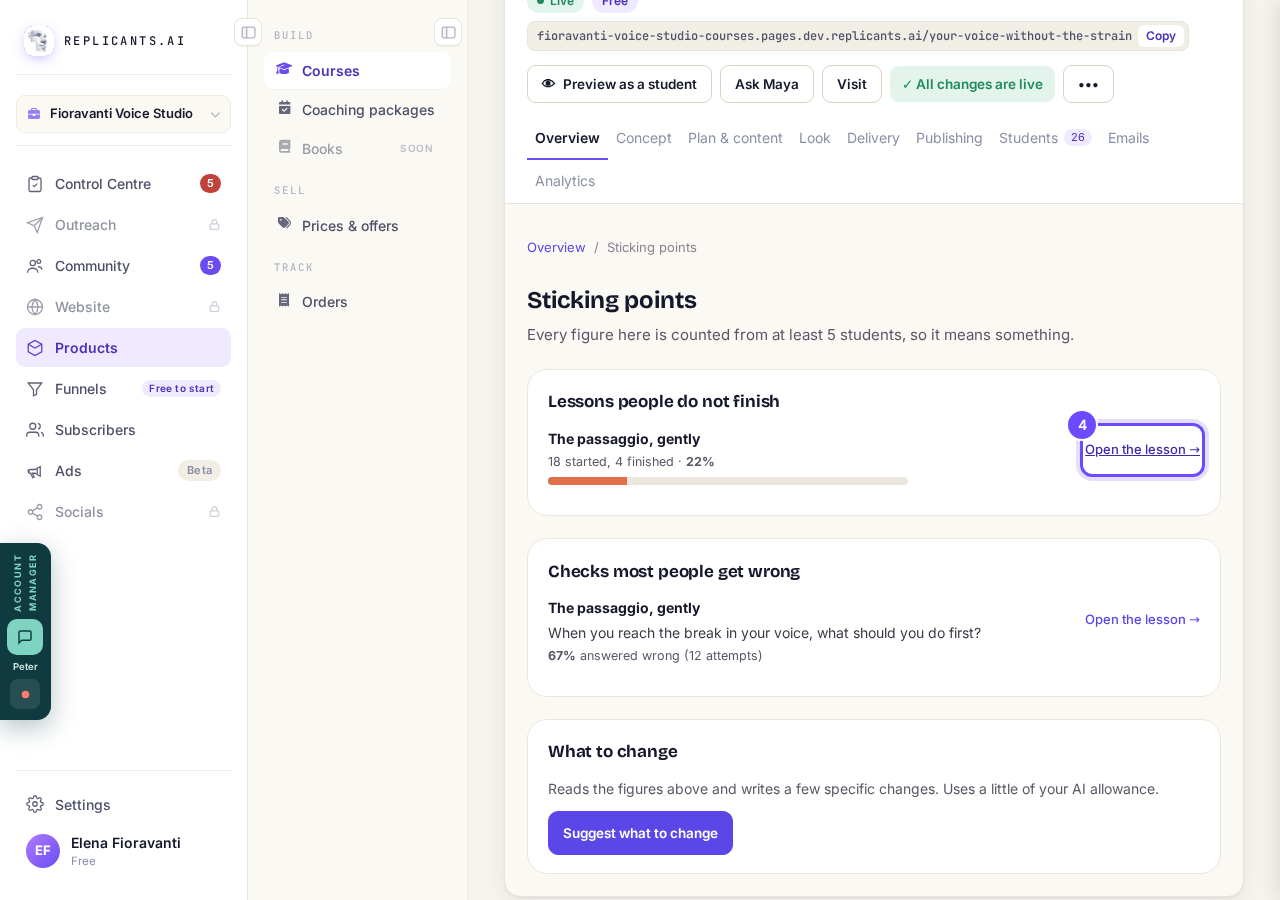
Open the lesson, beside a lesson that loses people.
Press Suggest what to change
You get up to five changes, each about a named lesson or check; nothing changes until you change it.
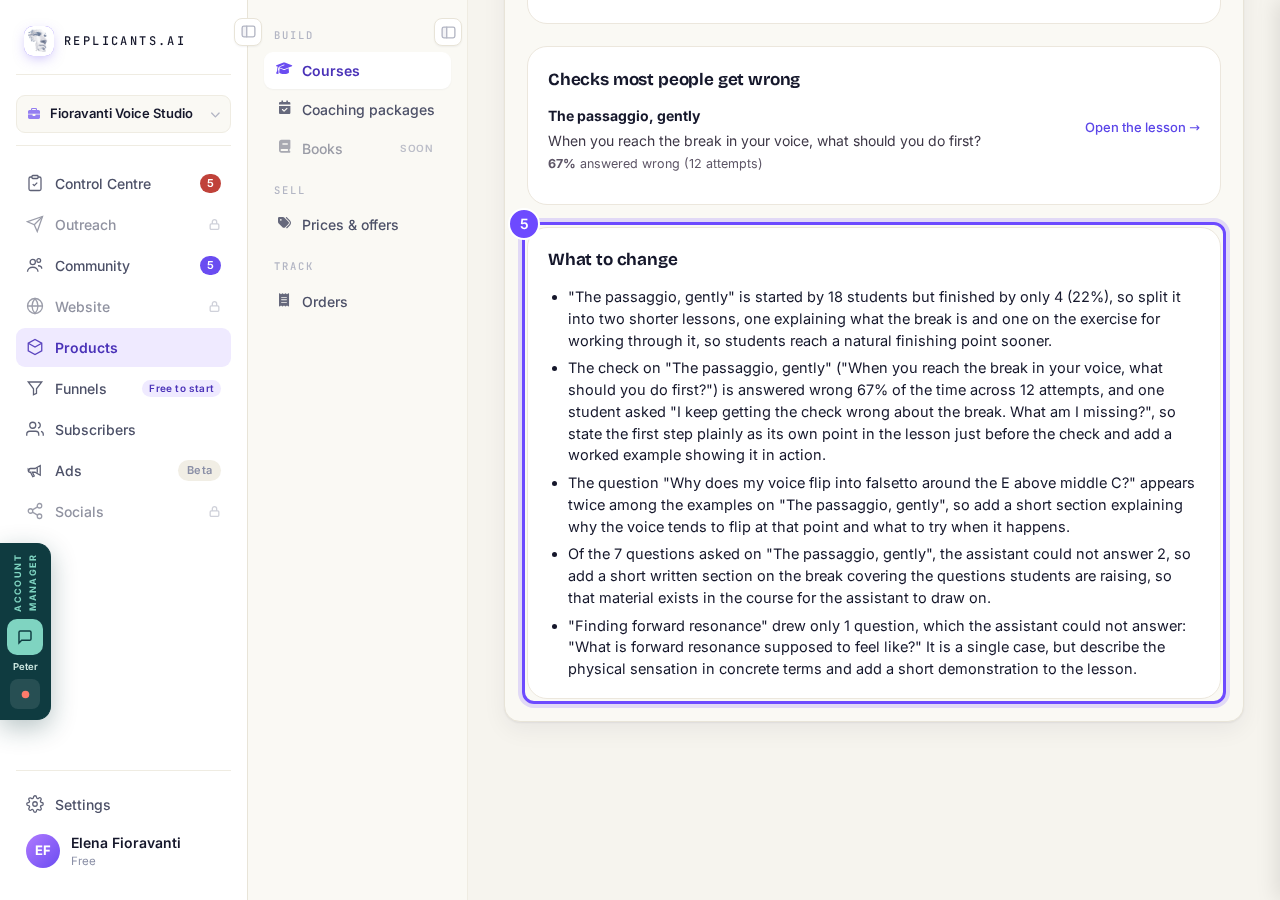
The suggestions, under What to change.


A lesson appears once at least 5 students have opened it, a video once 5 have stopped it, and a check question once it has 5 answers; until then it says Nothing is standing out yet. Looking is free; Suggest what to change uses a little of your AI allowance, one AI request.
How do I read and answer what students asked the AI tutor?
Related articles
Can I see a real course before I build mine?
Yes. Claire's free course, Small Steps, is a real course you can join as a student in about five minutes.
Can I turn my workbook, notes or recordings into a course?
Yes. Add your workbook, notes, slides or recordings at the start of a new course and Maya reads them; the questions arrive already answered, and your plan is built from them.
How does my course help students finish?
Your course has a tool for students who drift off, get stuck or feel alone, and you switch them all on or off in one place: Delivery, at the top of your course. Looking through them takes about five minutes.