
How do I read and answer what students asked the AI tutor?
Press Read the conversations on your course's Overview, open a question under Waiting for you, and reply as yourself. The student sees your answer under their question.
Updated 18 October 2026
Press Manage on your course
It is under Products in the main menu; on a phone, press the menu button, Products, then Courses.
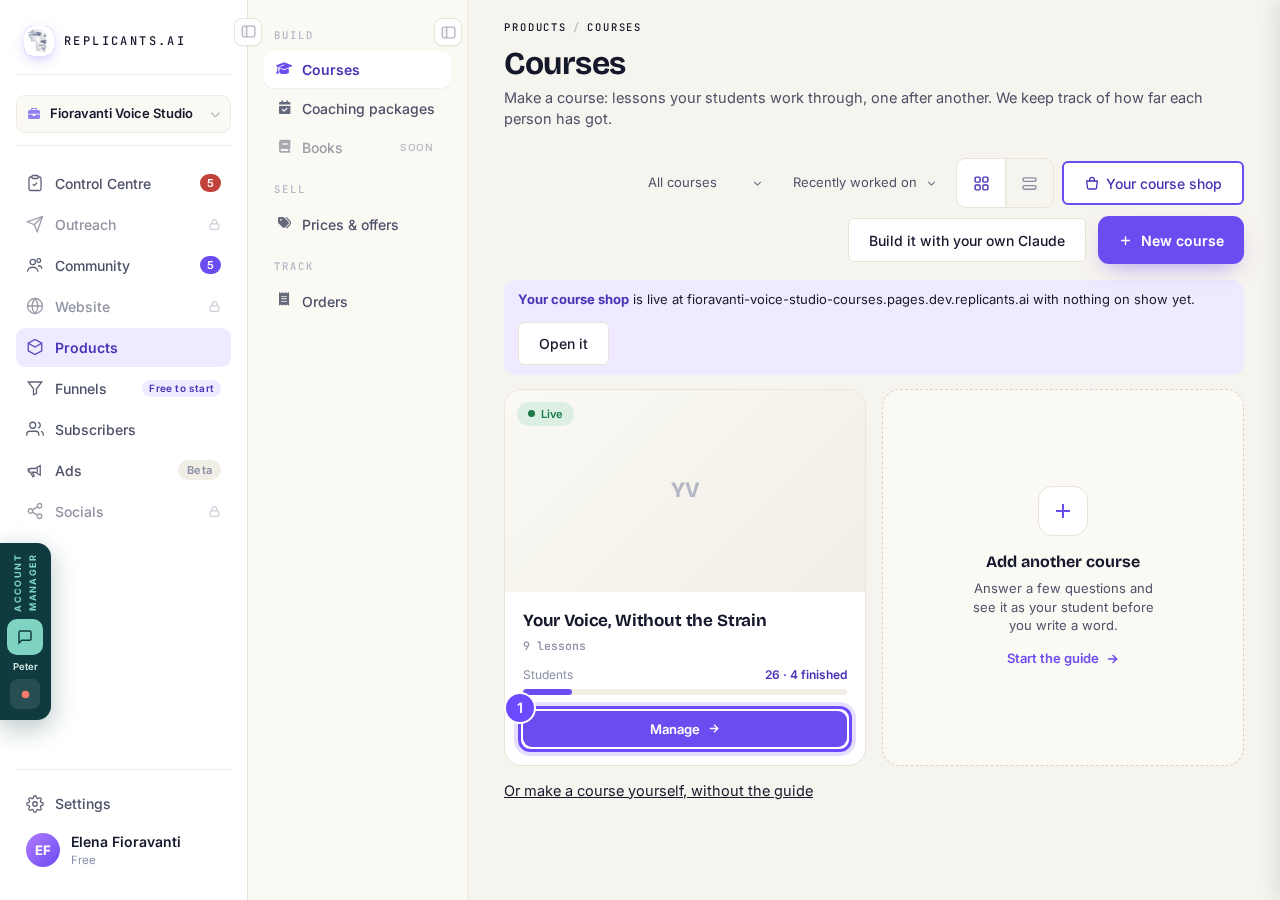
Manage, on the course's card.
Press Read the conversations
It is at the bottom of the What they're asking card on the Overview.
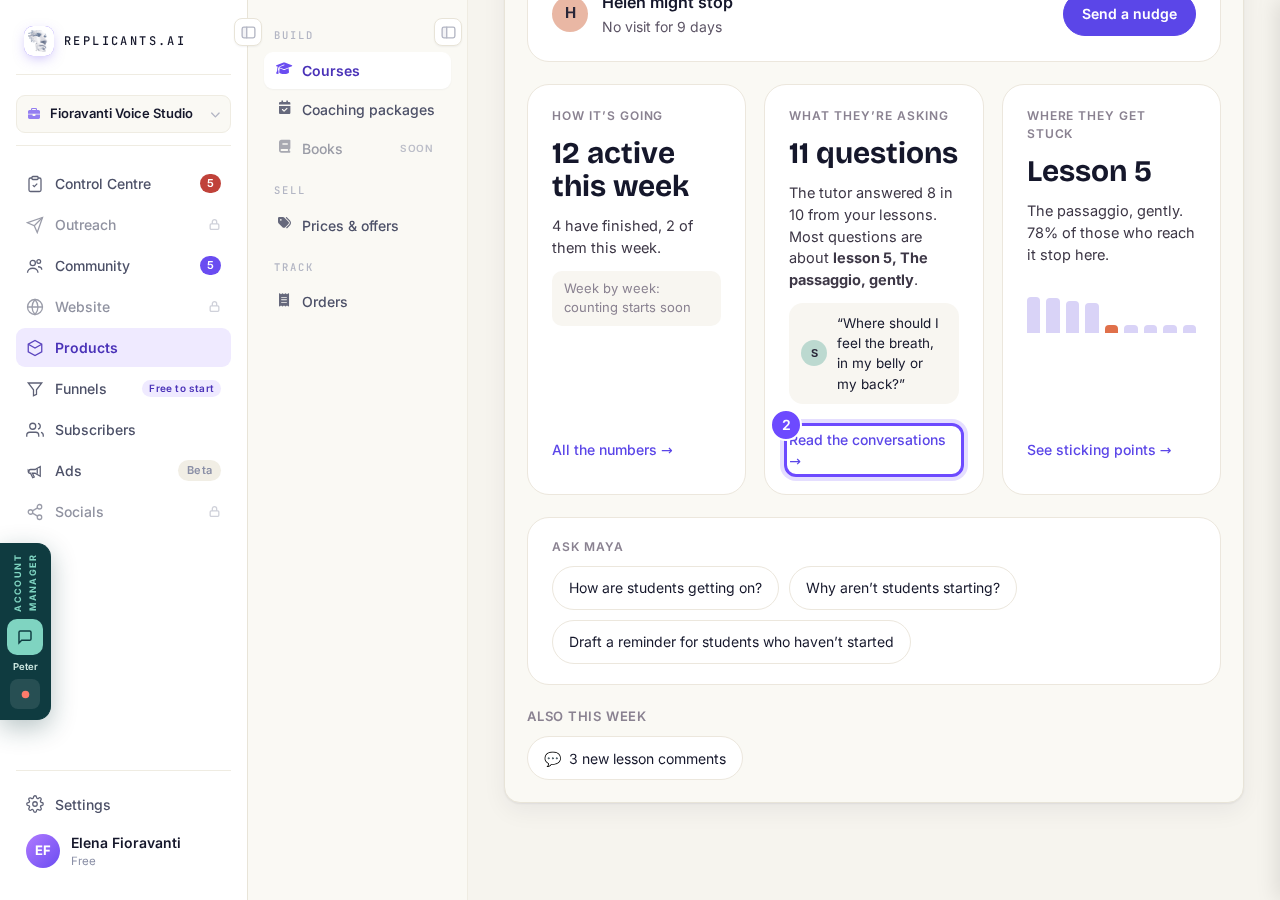
Read the conversations, in the What they're asking card.
Press a question under Waiting for you
These are questions the tutor handed to you that you have not answered yet, whatever their date.
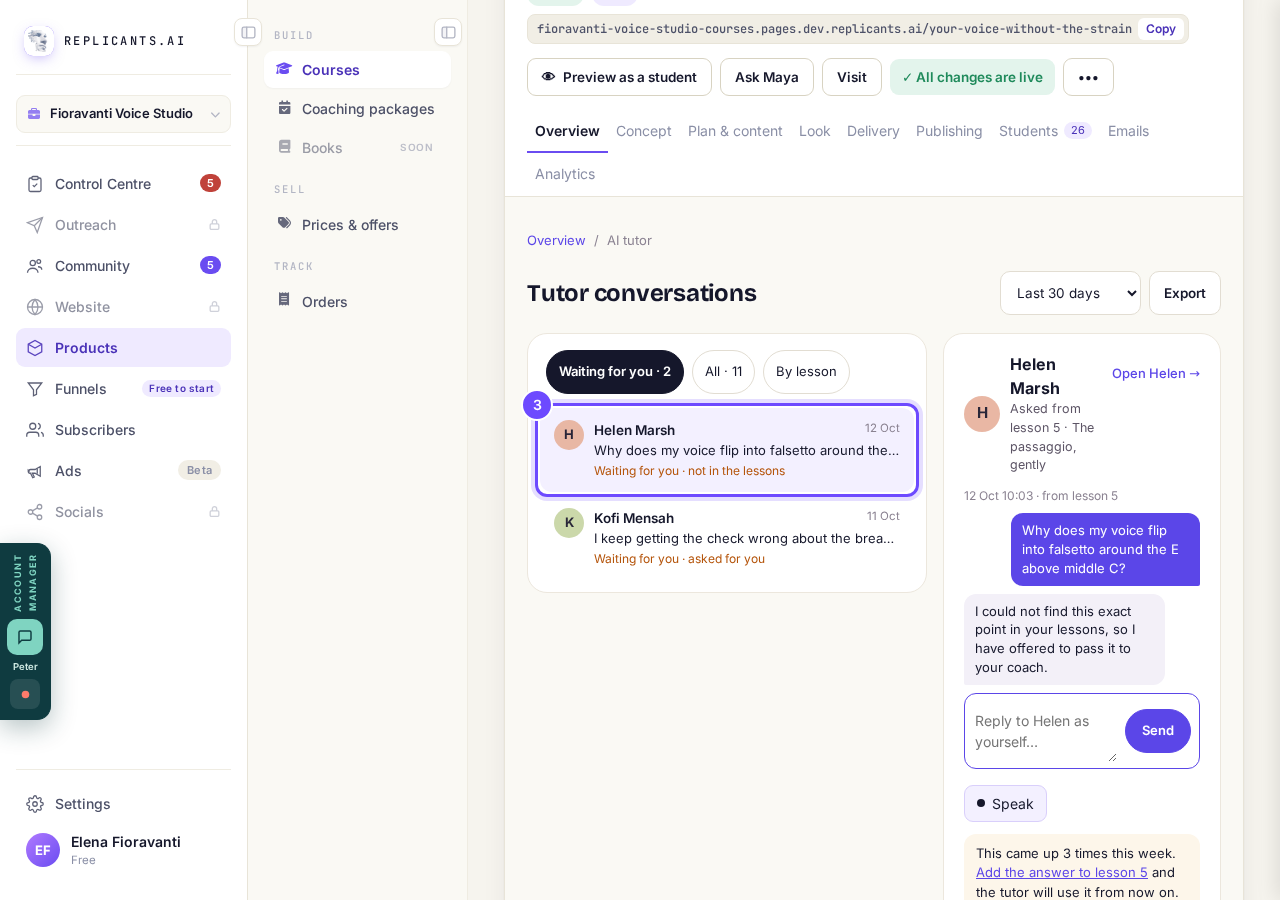
A conversation waiting for you.
Write your reply and press Send
The student sees it under their question in the course, and in their Messages in your community.
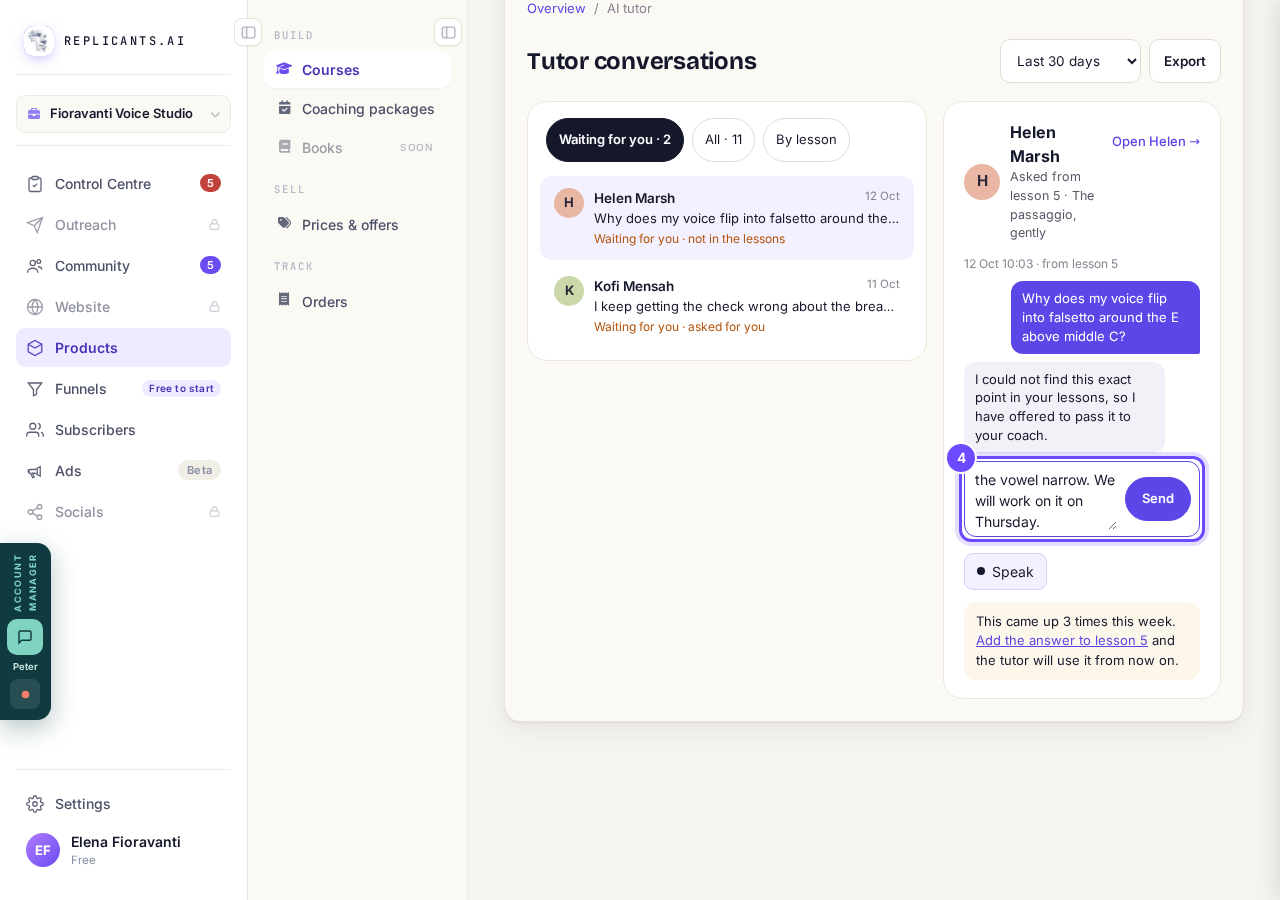
The reply box, with Send.
Press Add the answer to lesson
It shows when several students asked the same thing this week; add the answer and the tutor will use it from now on.
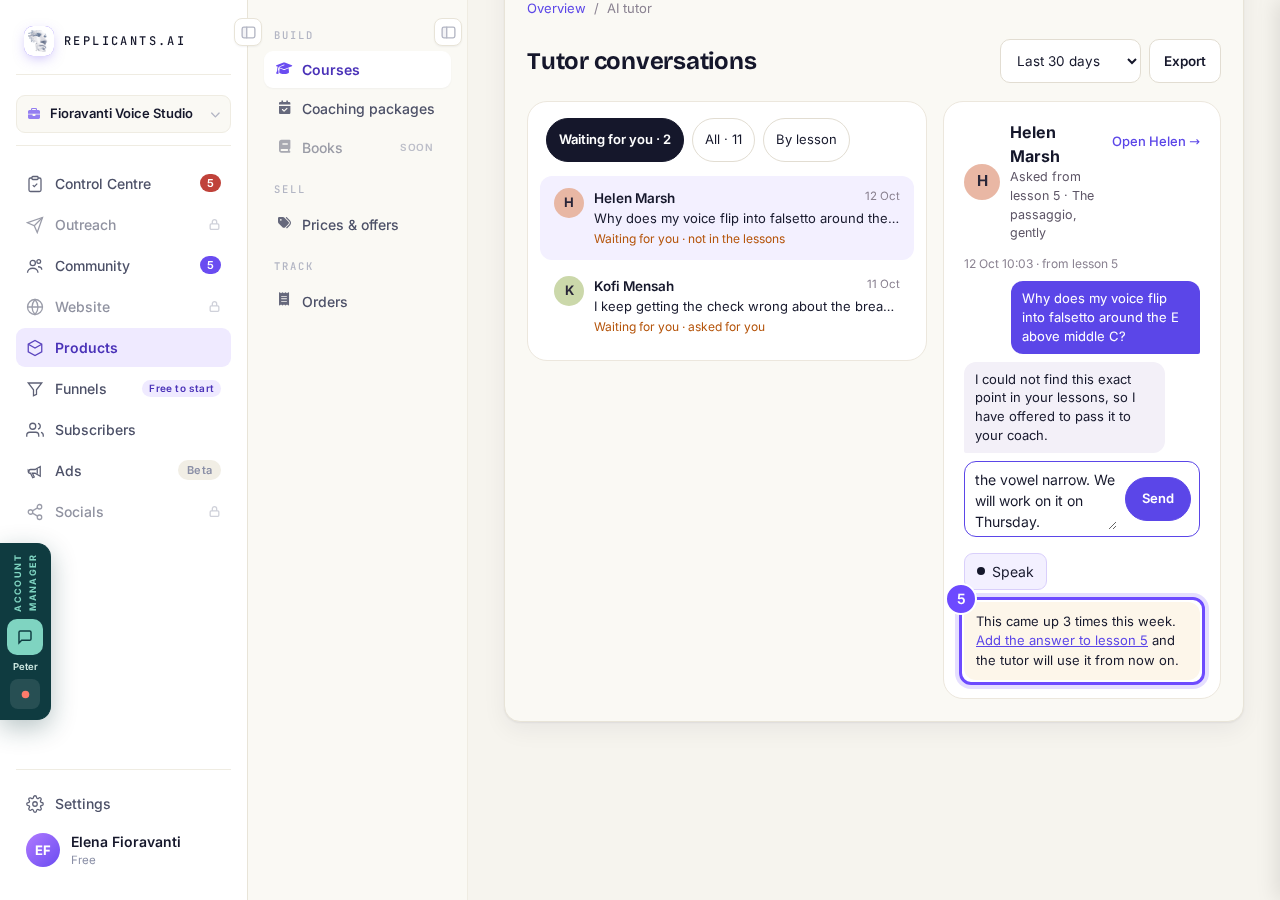
This came up 3 times this week. Add the answer to lesson 5.


Questions
Can I see every conversation, not only the waiting ones?#
Yes. Press All for every conversation in the dates you pick, or By lesson to see which lessons get the most questions.
Can I keep a copy?#
Press Export at the top right for a spreadsheet of every question, the tutor's answer and your reply.
Where are the comments under my lessons?#
Press new lesson comments under Also this week on the Overview to open Lesson talk, then Reply under a comment.
Each question a student asks the AI tutor uses a little of your AI allowance. Questions it hands straight to you, such as a student asking for you, cost nothing, and so do reading and replying yourself.
Where do I see my course's numbers?
Related articles
Can I see a real course before I build mine?
Yes. Claire's free course, Small Steps, is a real course you can join as a student in about five minutes.
Can I turn my workbook, notes or recordings into a course?
Yes. Add your workbook, notes, slides or recordings at the start of a new course and Maya reads them; the questions arrive already answered, and your plan is built from them.
How does my course help students finish?
Your course has a tool for students who drift off, get stuck or feel alone, and you switch them all on or off in one place: Delivery, at the top of your course. Looking through them takes about five minutes.