
Can a sequence run without a tag, started by an automation instead?
Yes. Set the sequence to Used in an automation only, and an automation's Add to sequence step puts people in. No tag needed. About two minutes.
Updated 19 October 2026
Open Subscribers, then Sequences, and press your sequence
Any sequence can work this way, a new one or one you already have.
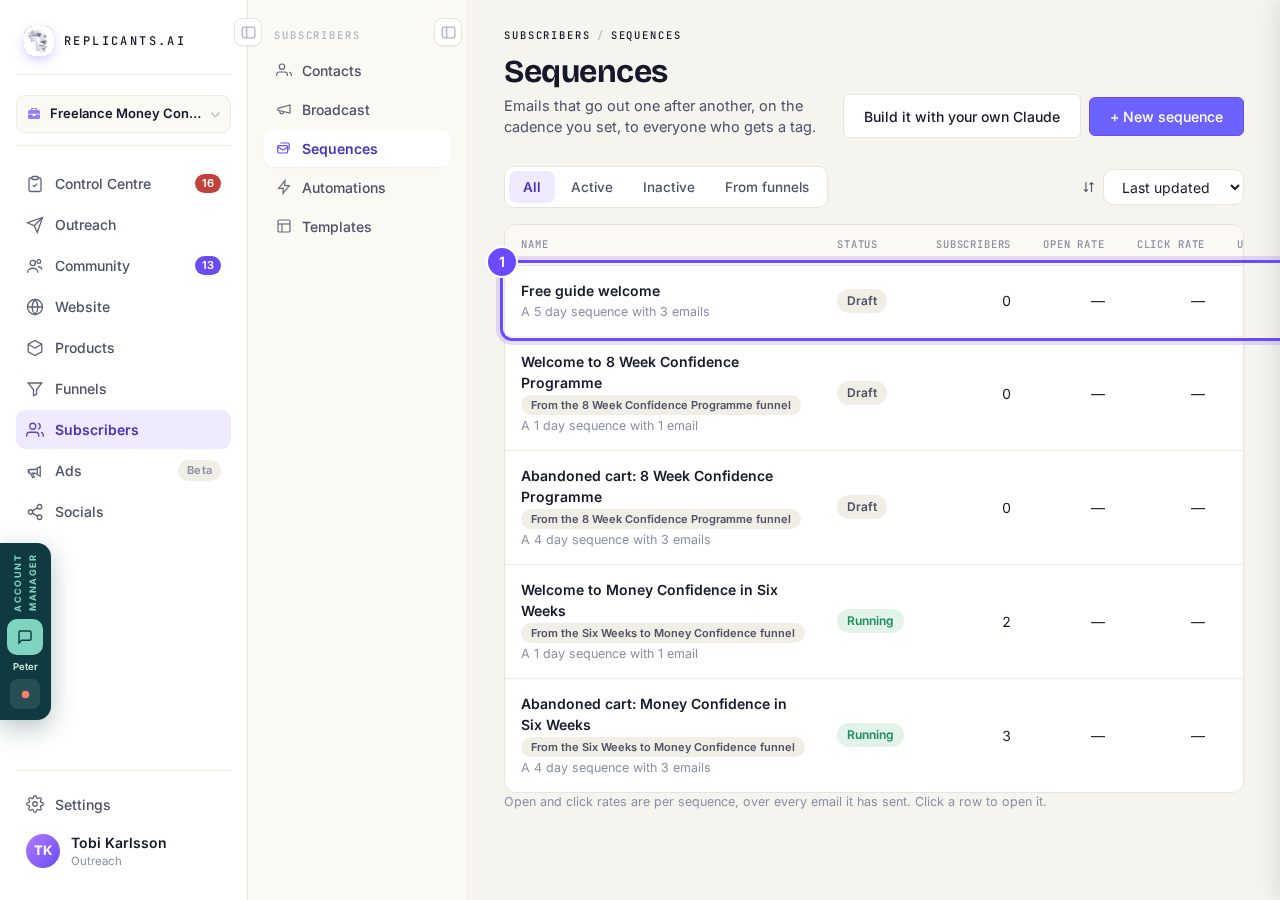
Your sequences, with Used in on the right.
Open SubscribersPress Settings
It is at the top of the sequence, after Content, Analytics, Recipients and Used in.
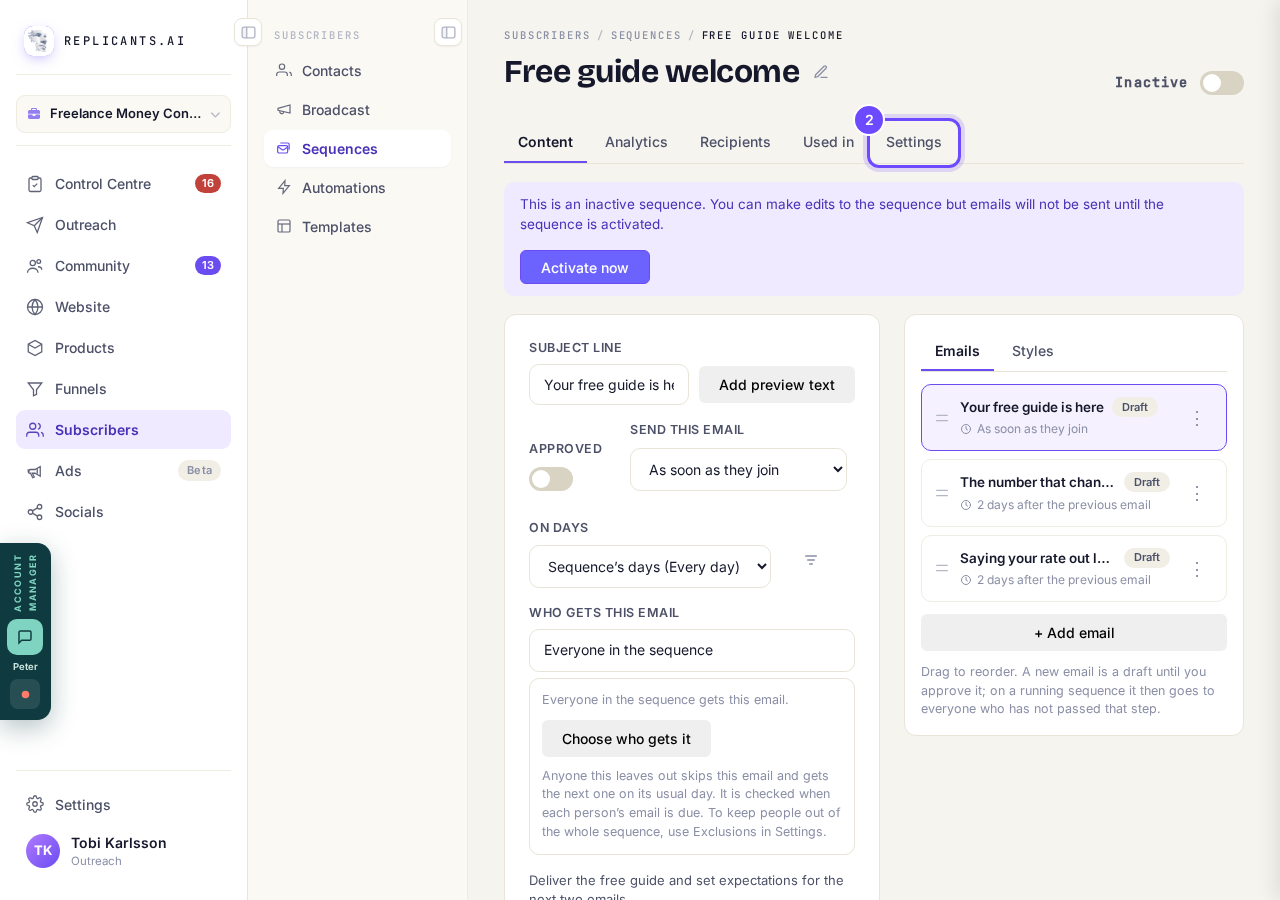
Settings, at the top of the sequence.
Choose Used in an automation only, then press Save settings
It is under How people join, with A tag puts them in above it. Save settings is at the right of the page.
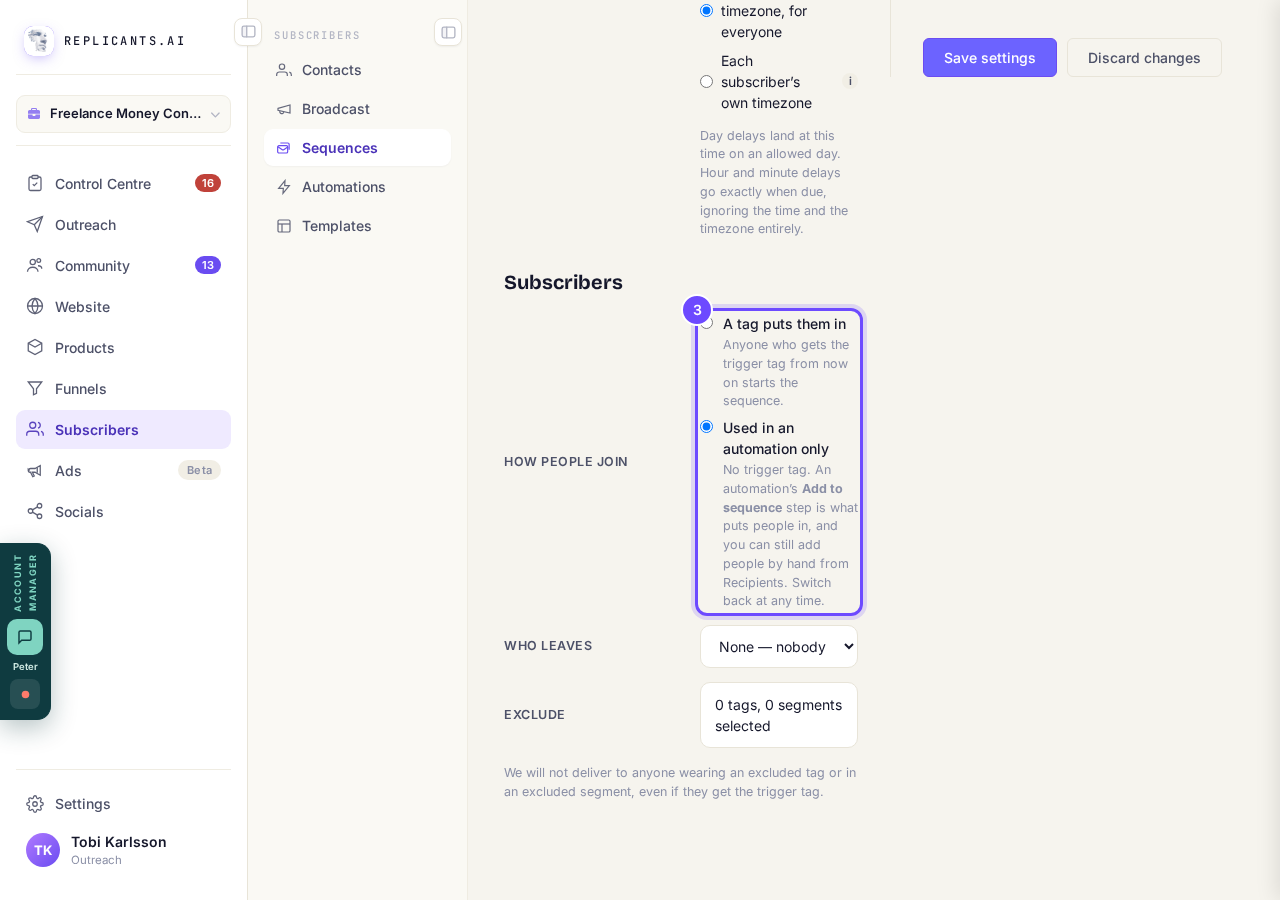
How people join: Used in an automation only.
Add an Add to sequence step in your automation and pick this sequence
Open Automations, open the automation, press the + where it should go, choose Add to sequence, pick the sequence and press Add step. Everyone who reaches that step starts at email 1.
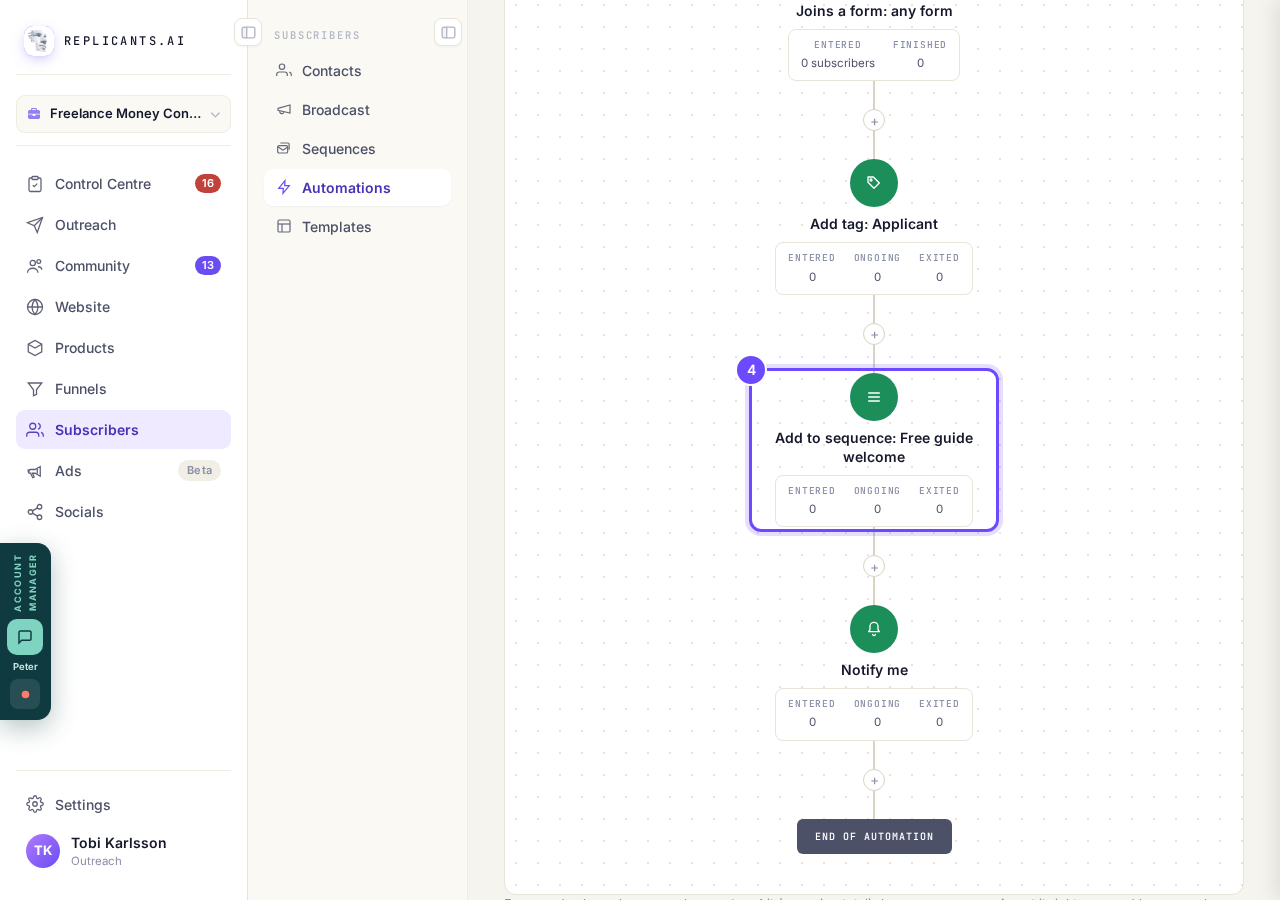
The Add to sequence step, naming the sequence.
Open AutomationsApprove each email, then press Activate now
Do this before you turn the automation on, because anyone who reaches the step while the sequence is off is passed over, not kept for later.
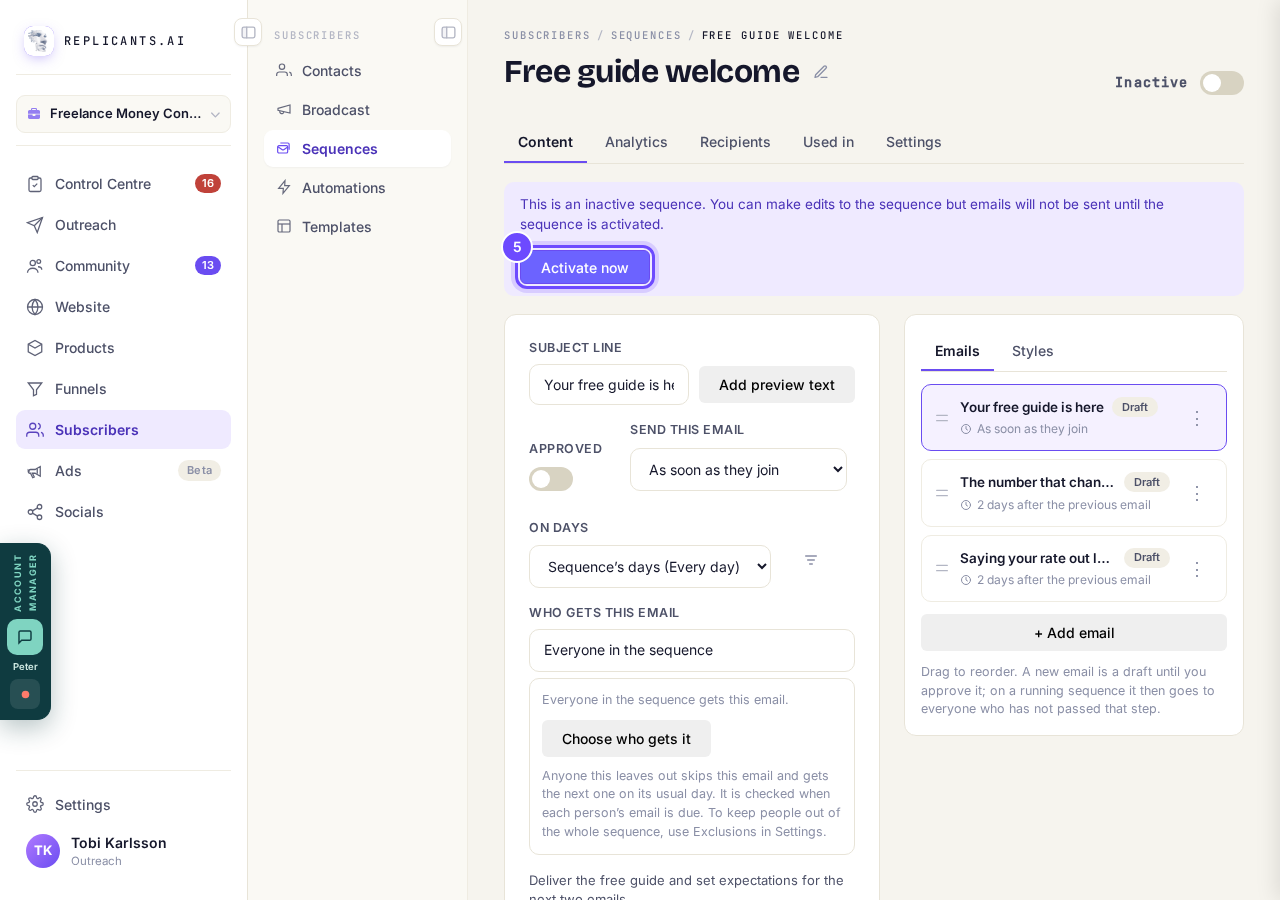
Activate now, on a sequence that is still off.


People only reach the Add to sequence step once the automation itself is turned on, and only people who do what starts it from then on. Switch the sequence on first, so nobody reaches the step while it is still off.
How do I set up an automation?
Related articles
Can I send a broadcast again, or use it as a starting point?
Yes. Press ••• on the broadcast, then Duplicate. A copy opens as a draft with the same subject and words, ready to change and send. About a minute.
How do I choose what time of day my emails arrive?
When you send a broadcast you can spread it over a few hours, and let each person get it at the time they usually read their email. It is all on the last screen, Schedule.
How do I create a new tag?
A tag is a label you put on people so you can find them again. You make one by ticking the people it belongs on and naming it, in Subscribers, on the Contacts page.